Products
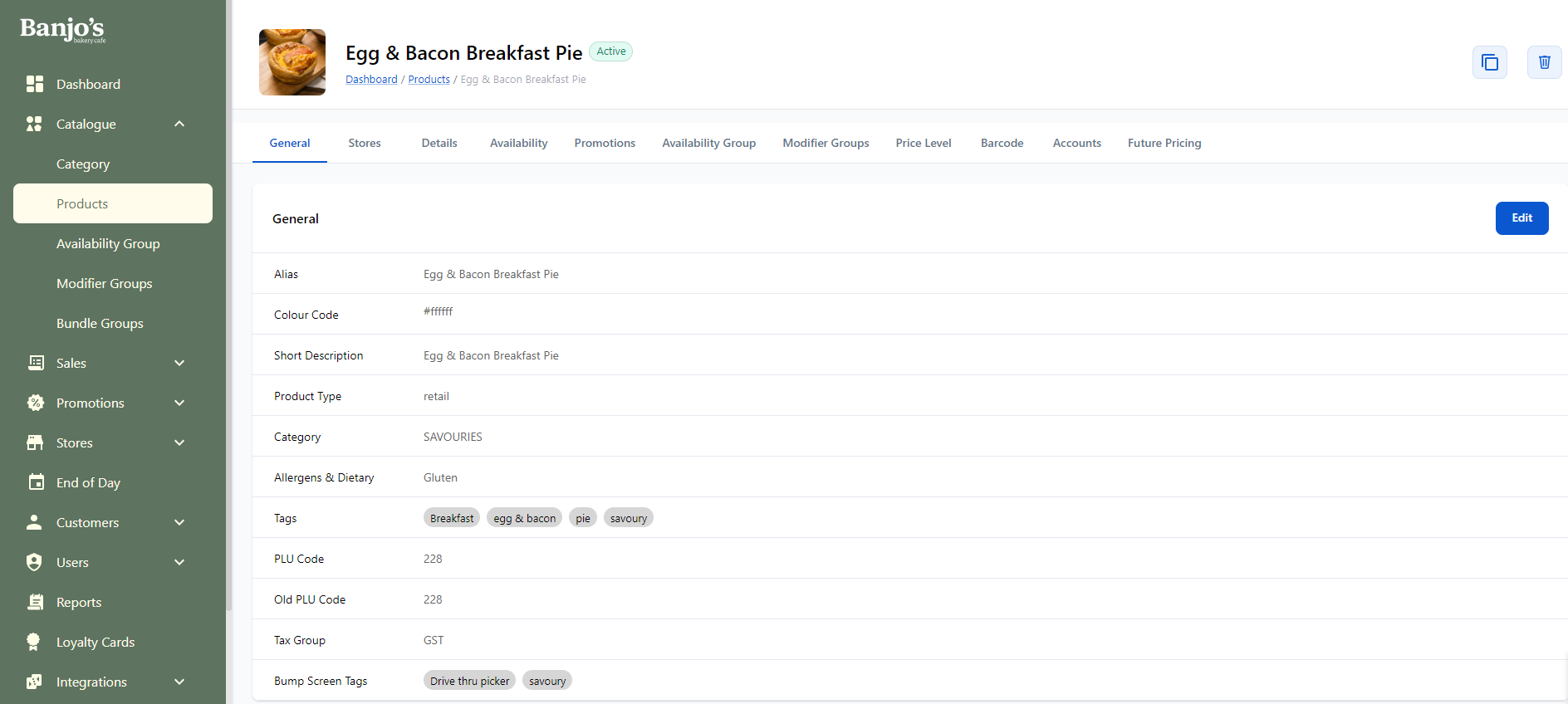
| Name * | Name of the product |
| Alias * | Alternate name of the product |
| Colour * | Display colour of the product |
| Short description * | Short description on product |
| Category * | Category of the product |
| Product type * | Type of product like retail, bundle etc |
| Allergens & Dietary * | Allergens such as glutens, diary etc and veg/non-veg/egg modifiers of the product |
| Tax Group * | Tax-group for the product. |
| Product Tags | Tags for the products. |
| PLU code | Product's PLU code |
| Old PLU code | Product's old PLU code |
| Bump Screen Tags | These tags are used in bumpscreens. |
| Report Category | Product category name for reporting purpose. |
| Report Class Name | Product class name for reporting purpose |
| Product variants | Variants for the products, if any. |
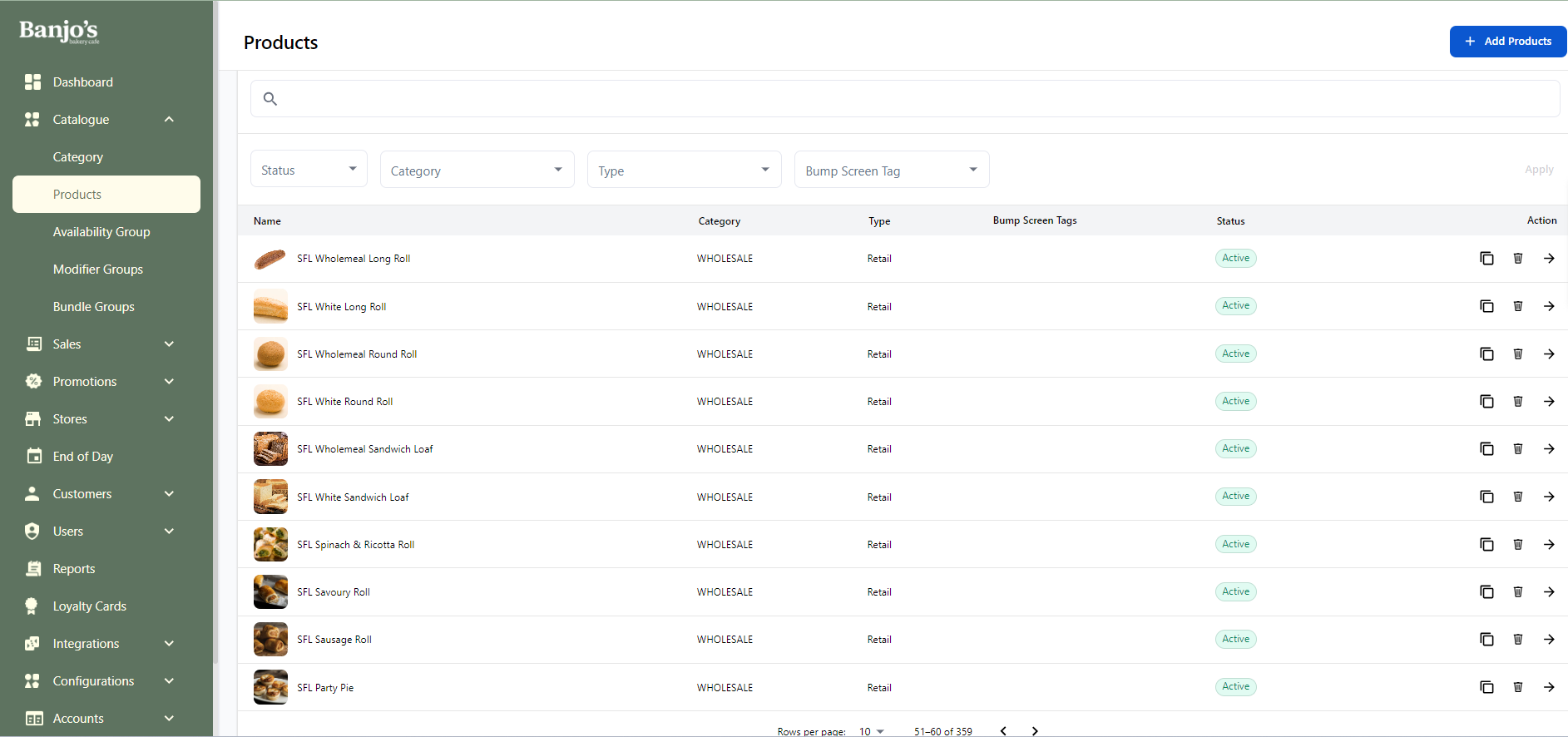
List all products
All active and inactive products will be listed.
General details
User can view and edit general details of the product.
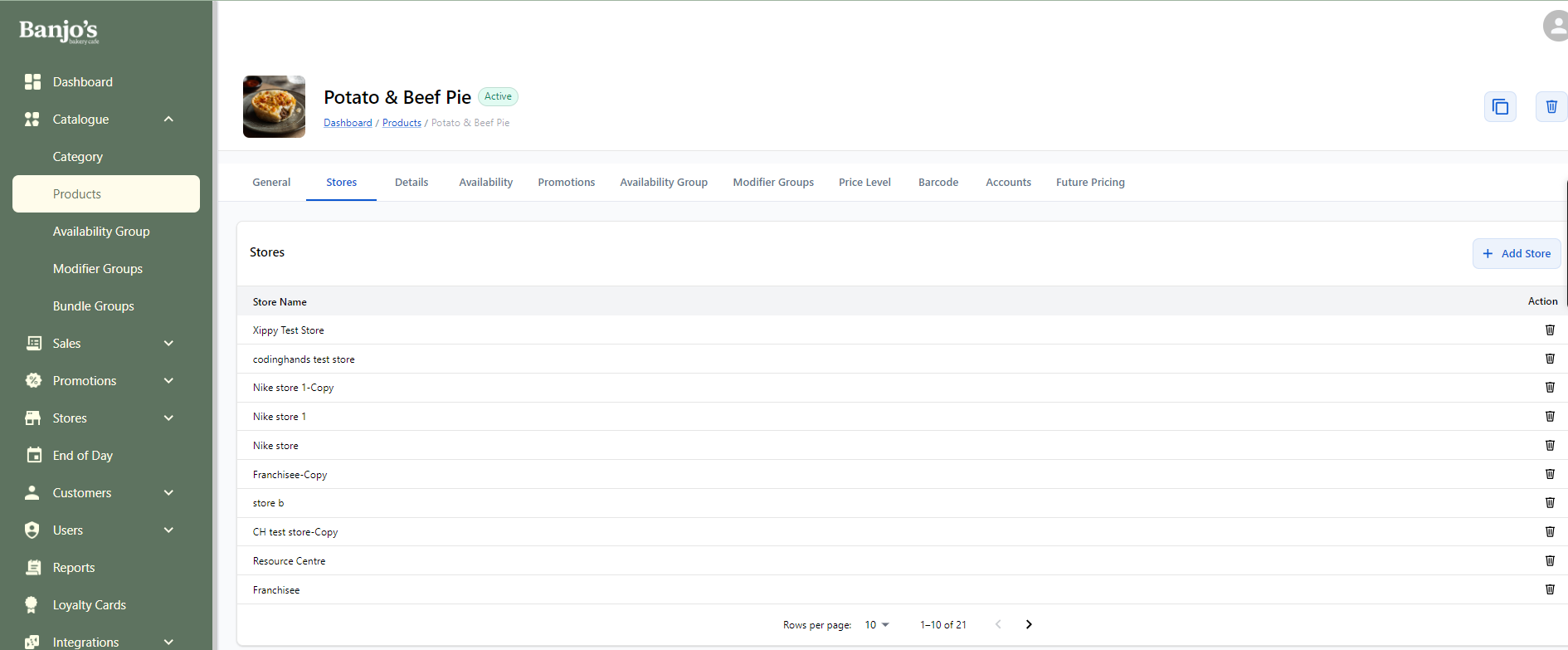
Stores
Manage stores mapped to the product.
Mapping a product to a store is one of the pre-requisites for displaying the product in the store's POS sales window. Here, we can add more stores or remove existing stores from the list of mapped stores.
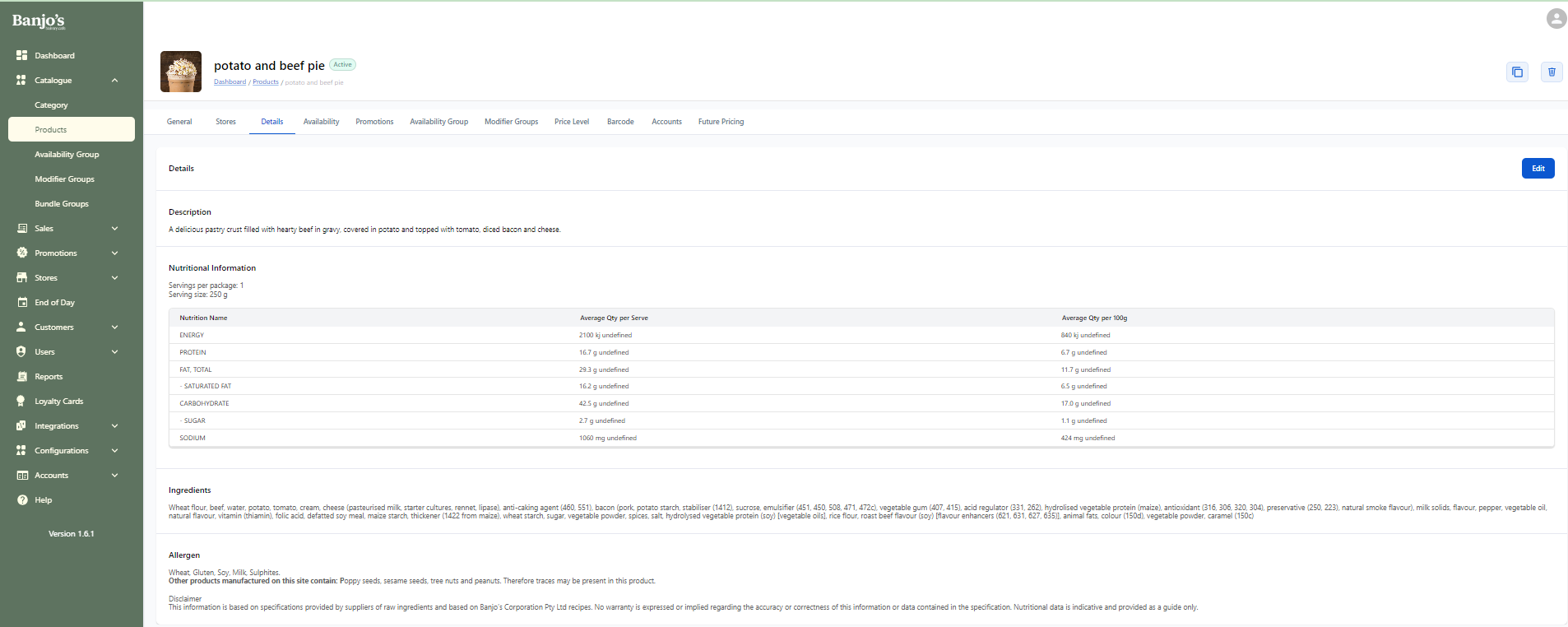
Details
View and update detailed informations like description, its ingredients, nutritional information, allergene etc.
Availability
Availability of a product can be configured. We can set whether the product is available for preorder, specific date range, product active/inactive status and set status of product to be shown/not shown in listing in POS sales window.
| Pre order | Whether the product is available for pre-order ie available to order for a future date from Online Ordering or POS app. |
| Start & End Date | We can set the product to be available based on start and/or end dates. |
| Status | Active / InActive : Overall status of the product |
| Show in List | Whether the product should be shown as an individual product in POS sales window or not. |
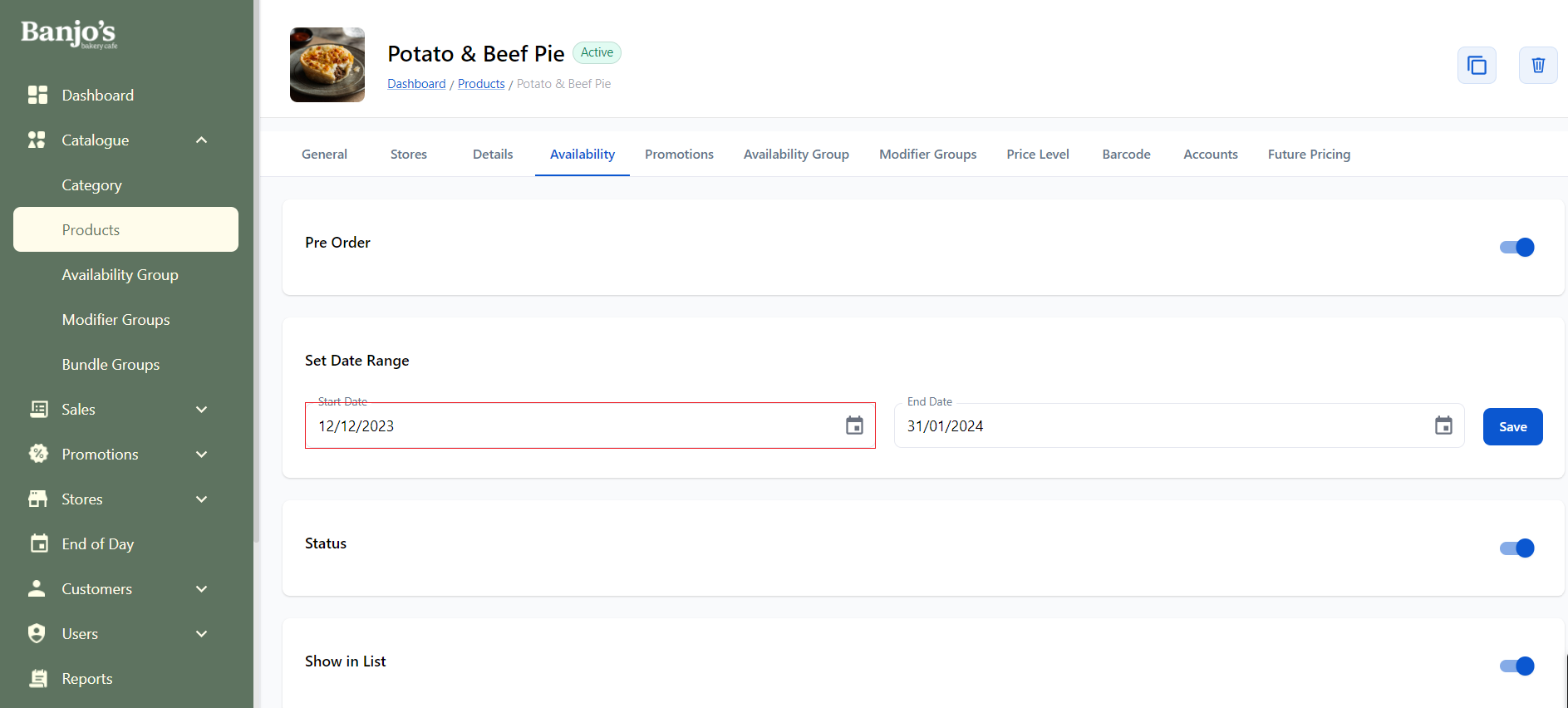
Set availability for a product using start and end date
Product availability can be controlled using Start Date and End Date across all sales channels.
Scenarios:
- Only Start Date is set:
- The product will be available for sale from the specified start date onwards
- Only End Date is set:
- The product will be available for sale until the specified end date
- Both Start and End Date are set:
- The product will be available only within the defined date range
This behavior is applicable across all sales channels - Online Ordering, POS, Ubereats and Doordash. In Online Ordering, products with a future start date will be shown as “Coming Soon” until the start date is reached.
Automated Handling (Cron Jobs)
- When the Start Date is reached:
- The product is automatically made available for sale across all sales channels
- The start date is removed from the admin panel
- When the End Date is reached:
- The end date is removed
- The product is marked as Inactive, making it unavailable across all sales channels
- Reactivation:
- If an admin reactivates the product, it will again be available across all sales channels
Promotions
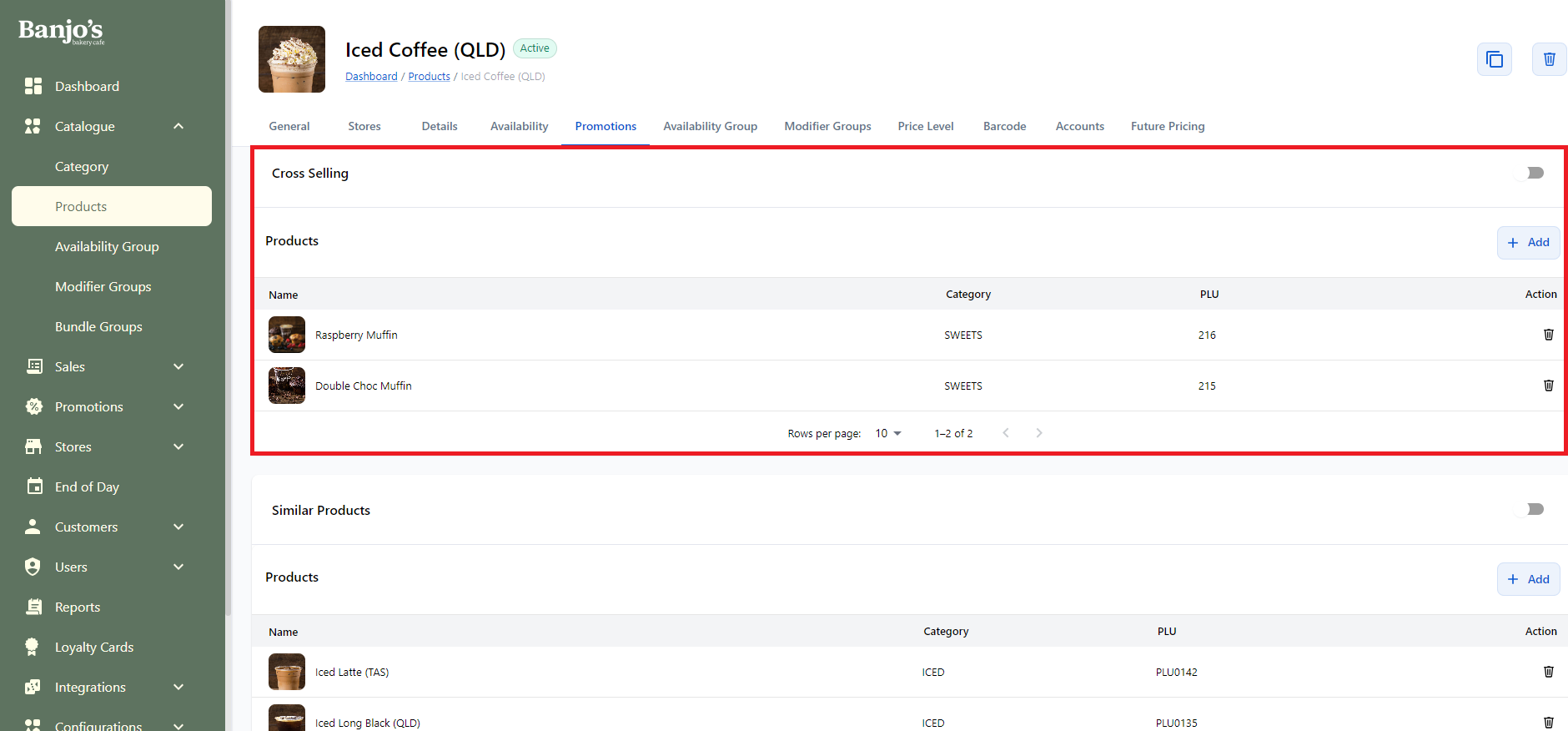
Admin can enable/disable Cross Selling and Similar Products of the product from the product's detail page and add/remove products to it. They will be used in Online Ordering and POS App.
Cross Selling
Cross selling is done to promote the sales by giving users, suggestions to buy some more cross products. For eg, if user is about to buy any pie product, there will be suggestions for any of the hot drinks, so that user can also easily add those to cart.
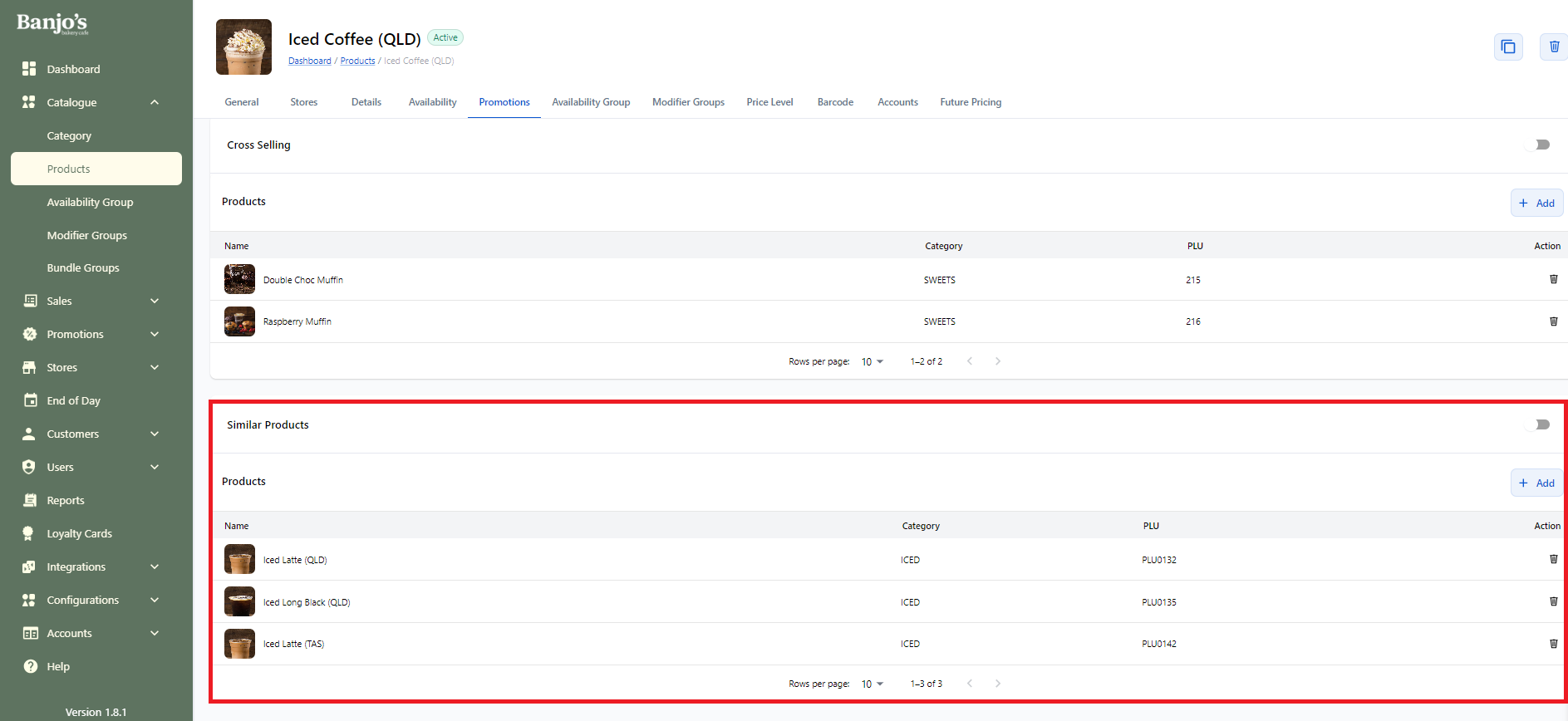
Similar Products
Similar products will be added in product's details page by giving users, suggestions to buy some more identical products. For eg, if user is about to buy a raspberry muffin, there will be suggestions for blueberry muffin, double choc muffin etc, so that user can also easily add those to cart.
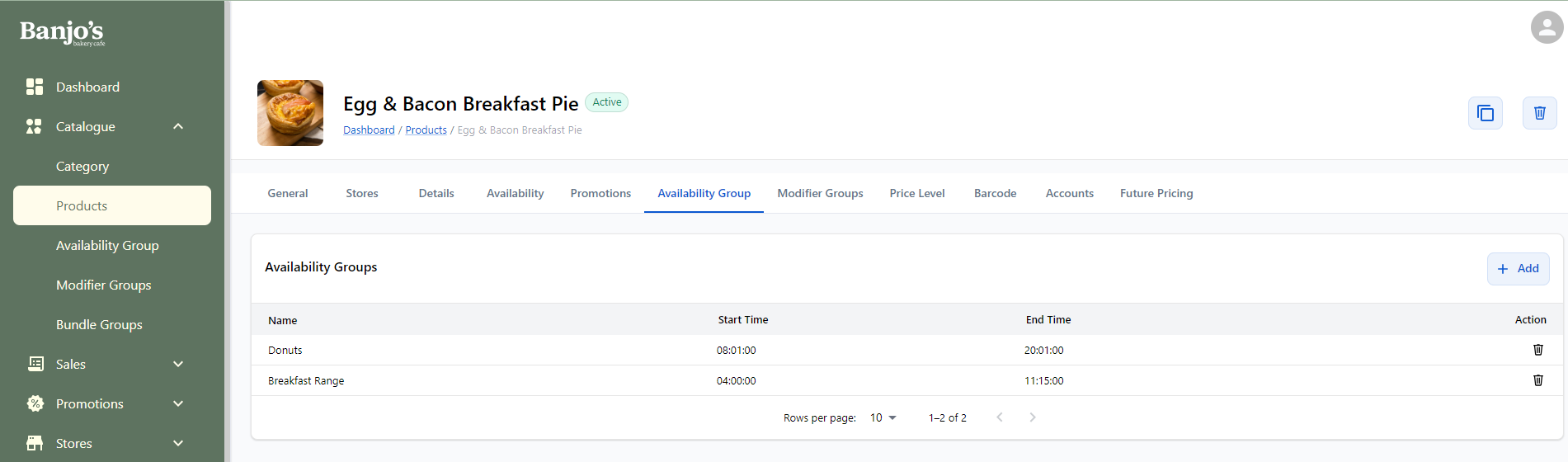
Availability Groups
Manage availability-groups for the product. Some products can be available for some duration of time. For eg, products in the Breakfast category will be available from 5am to 10.30am. So such products can be grouped under separate availability group and those products will be available in that time period only.
Availability group are be mapped to one or more sales channel(s) such as POS, online ordering, Uber Eats etc so that product's availability can be set separately for these platforms.
 Click here to know more about Availability Groups.
Modifier Groups
Admin user can manage modifier-groups for the product. Modifier products are items that can be added to a main product to customize it according to the customer’s preferences or requests.
Two types of Modifier groups
- Single Selection - For a single selection type, each product in the group can be selected only once.
- Multi selection - For a multi selection type, each product in the group may be selected multiple times i.e quantity can be more than one.
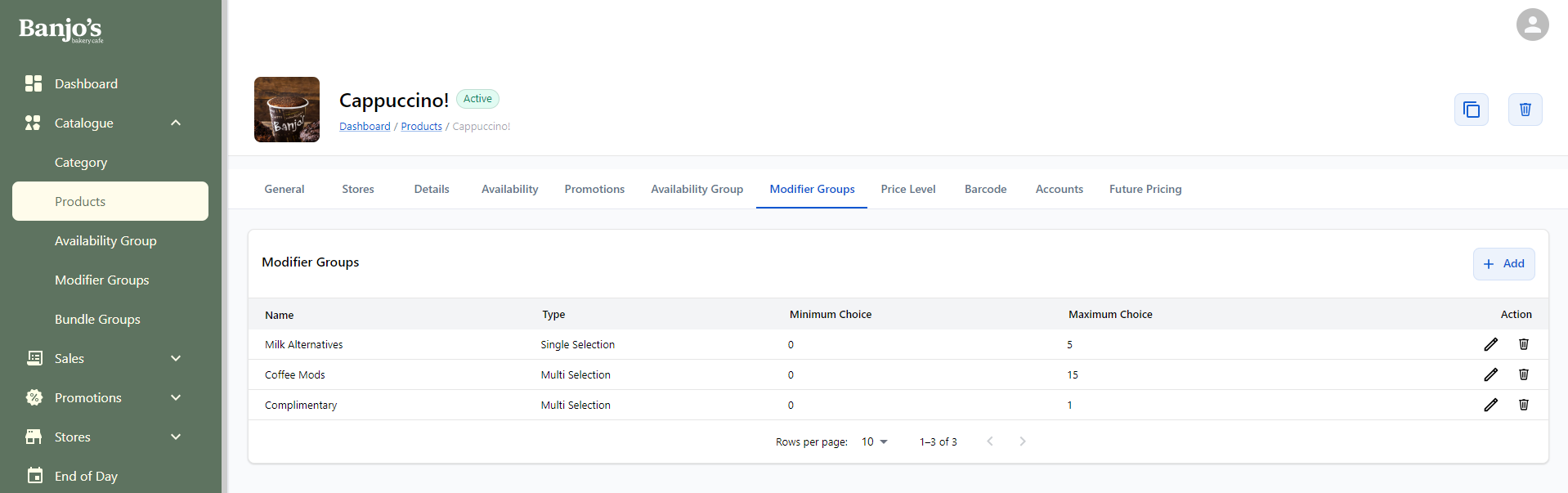 Click here to know more about Modifier Groups.
Price Levels
A product may have different prices for different sales channels. This can be handled by price levels. The current price and old price of the product along with cost exclusive and inclusive GST and special prices (if any) can be updated here under each price levels. If the product has variants such as regular, large, small, toasted, sliced etc, separate pricing for each variants can also be updated here.
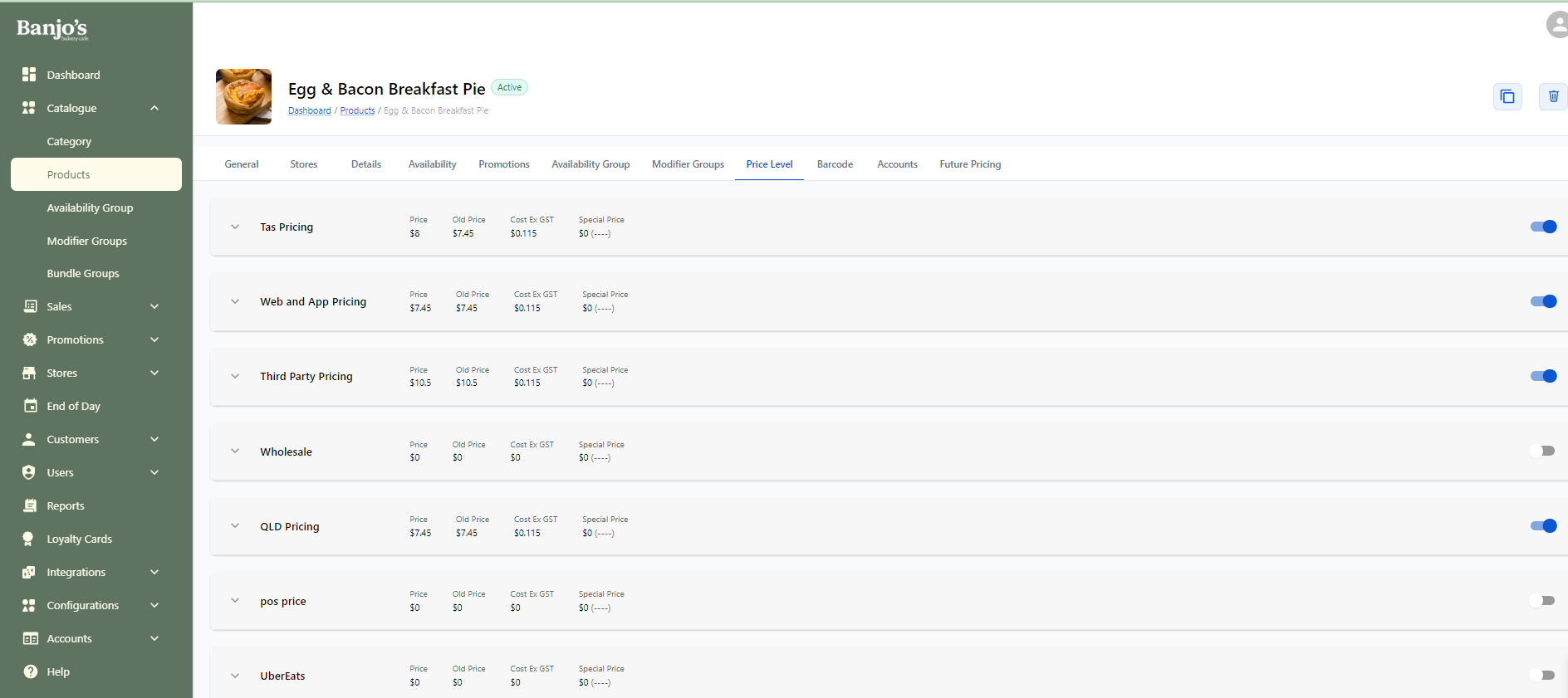 Click here to know more about Price Levels.
Barcode
A product can have one or more barcodes added to it. These will be entered from super admin panel. In the product's detail page, under the tab "Barcode", admin user can view, add or delete barcodes for the product. These barcodes can be used in POS Desktop app for selling products.
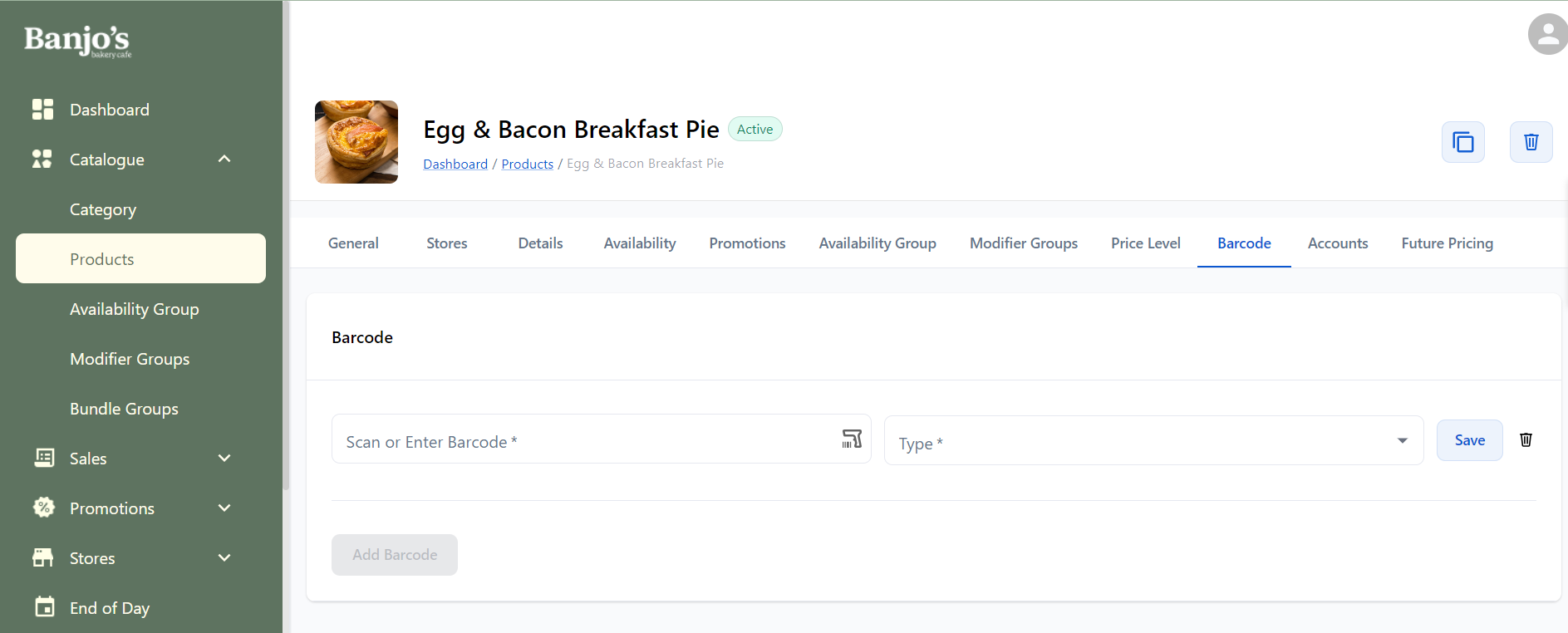
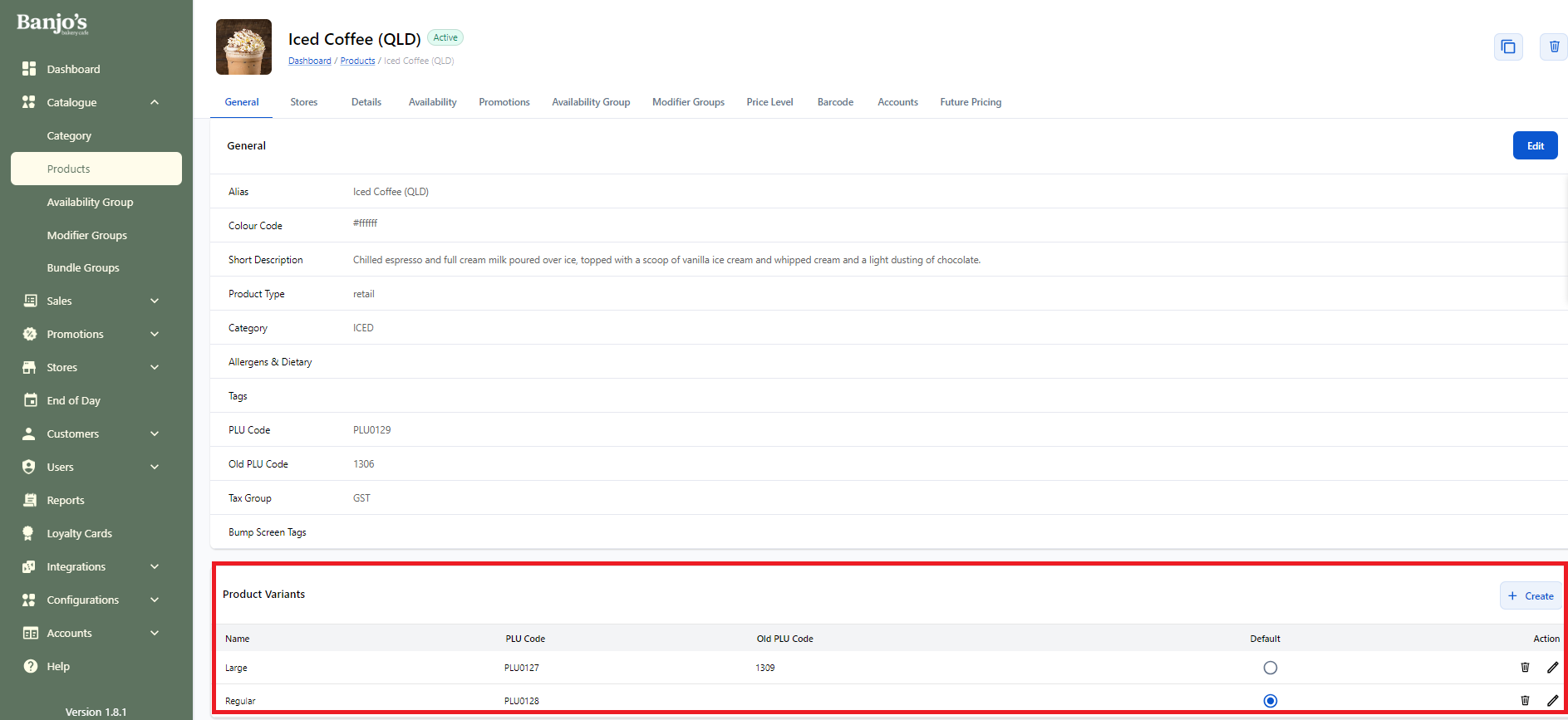
Product with variants- Customizable products
Some products come in different variants based on size, quantity etc. From admin panel, we can add one or more variants for a product. Price is also set at the variant level for these product in price-levels. Product variants can be set as regular, large, small, toasted, sliced etc.
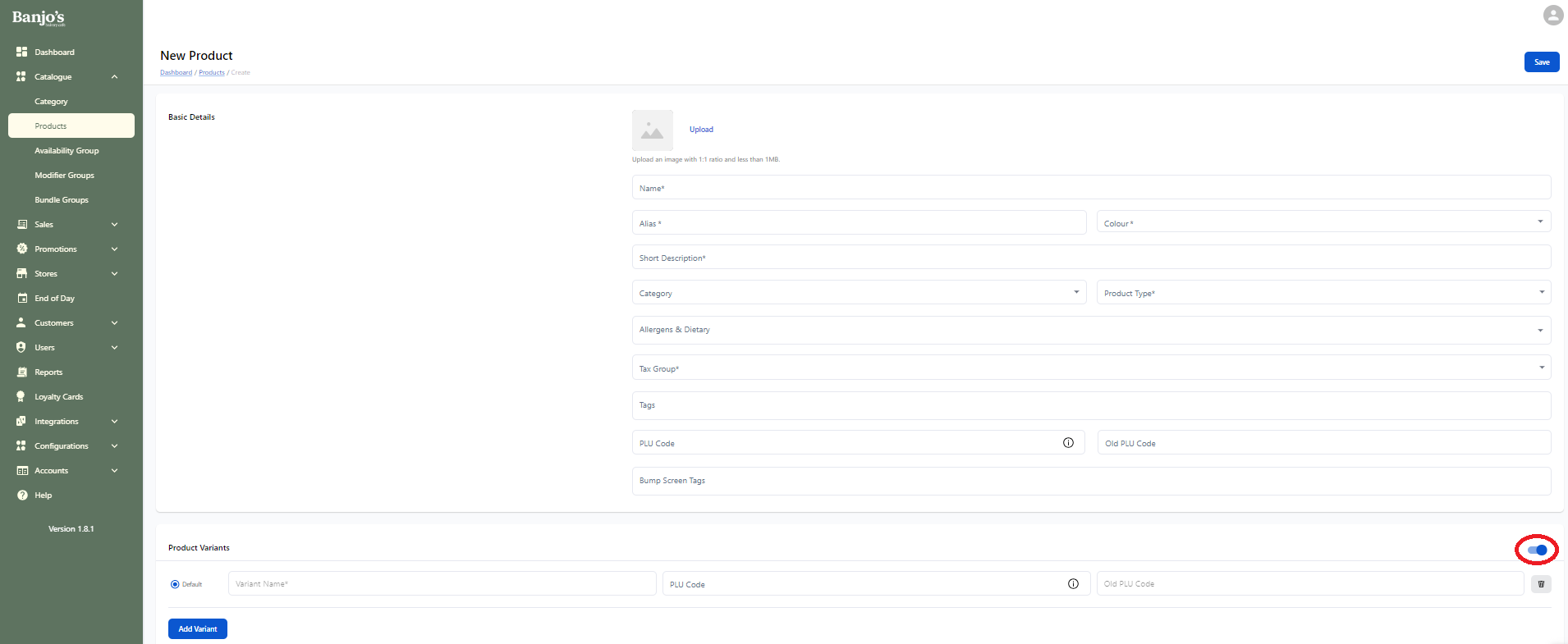
Future Pricing
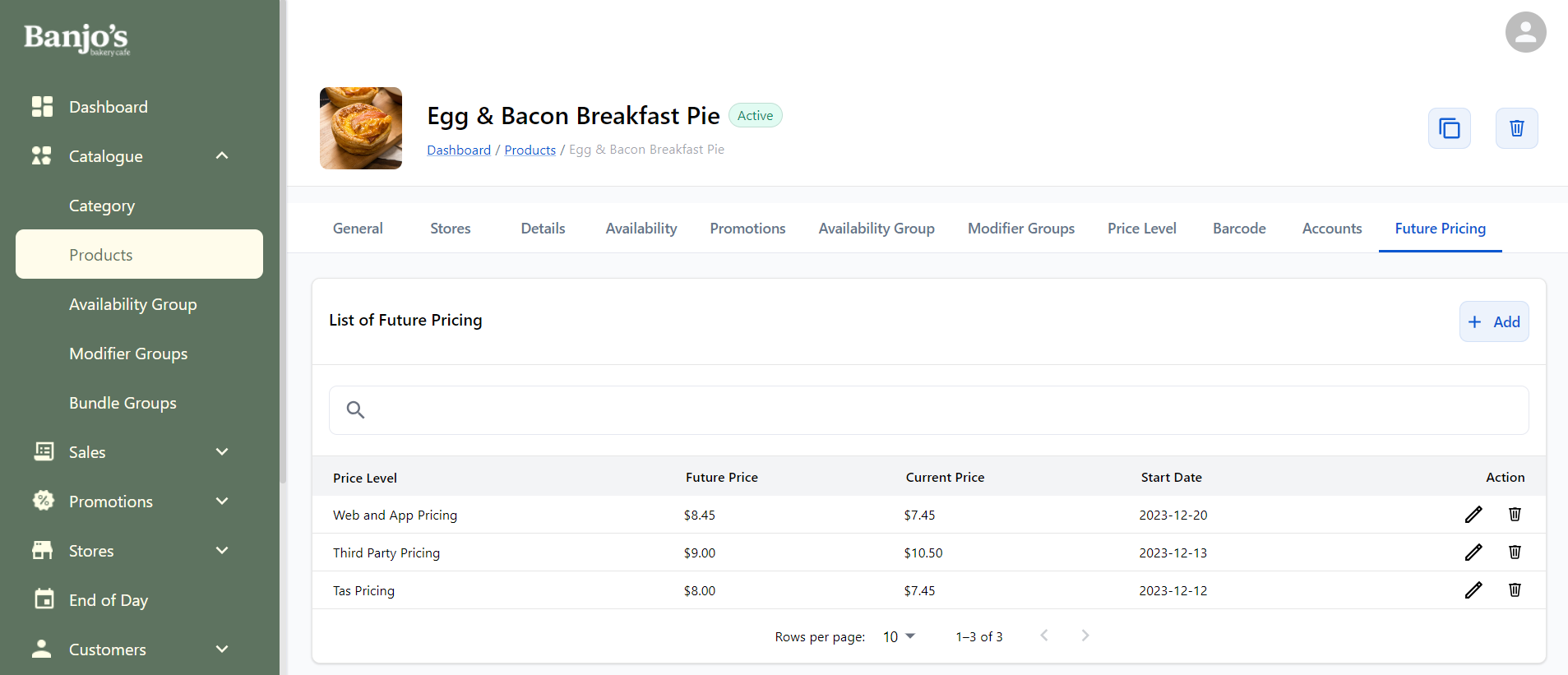
For handling price-changes for products, admin user can set future pricing. The future pricing will be done based on the defined price levels. The configured list of future prices will be listed here. User can add a new or delete a future-price change for the product from here.
When start-date for a future price change is reached, the price level of the product will be automatically updated to the new price (in the admin panel as well as in other selected sales channels), and this future price entry will disapper from the list.
Click here to go to future pricing documentation.