End Of Day (EOD)
An End of Day (EOD) entry is a daily record maintained for each terminal to summarize and reconcile all transactions processed during the day.
It captures key details such as:
- Total sales by payment type (cash, points, gift cards, client accounts, etc.)
- Cash transactions, including system-calculated cash vs actual cash in hand
- Denomination-wise cash breakdown entered at the terminal
- Float amount retained for the next day
- Any variance between system cash and actual cash
EOD entries can be automatically generated by the system based on recorded transactions, or manually submitted by the user at the end of the day.
Configurations
Float Amount set-up
Float amount is configured from the Store settings. This value will be taken as requirede float for the EOD of all its terminals.
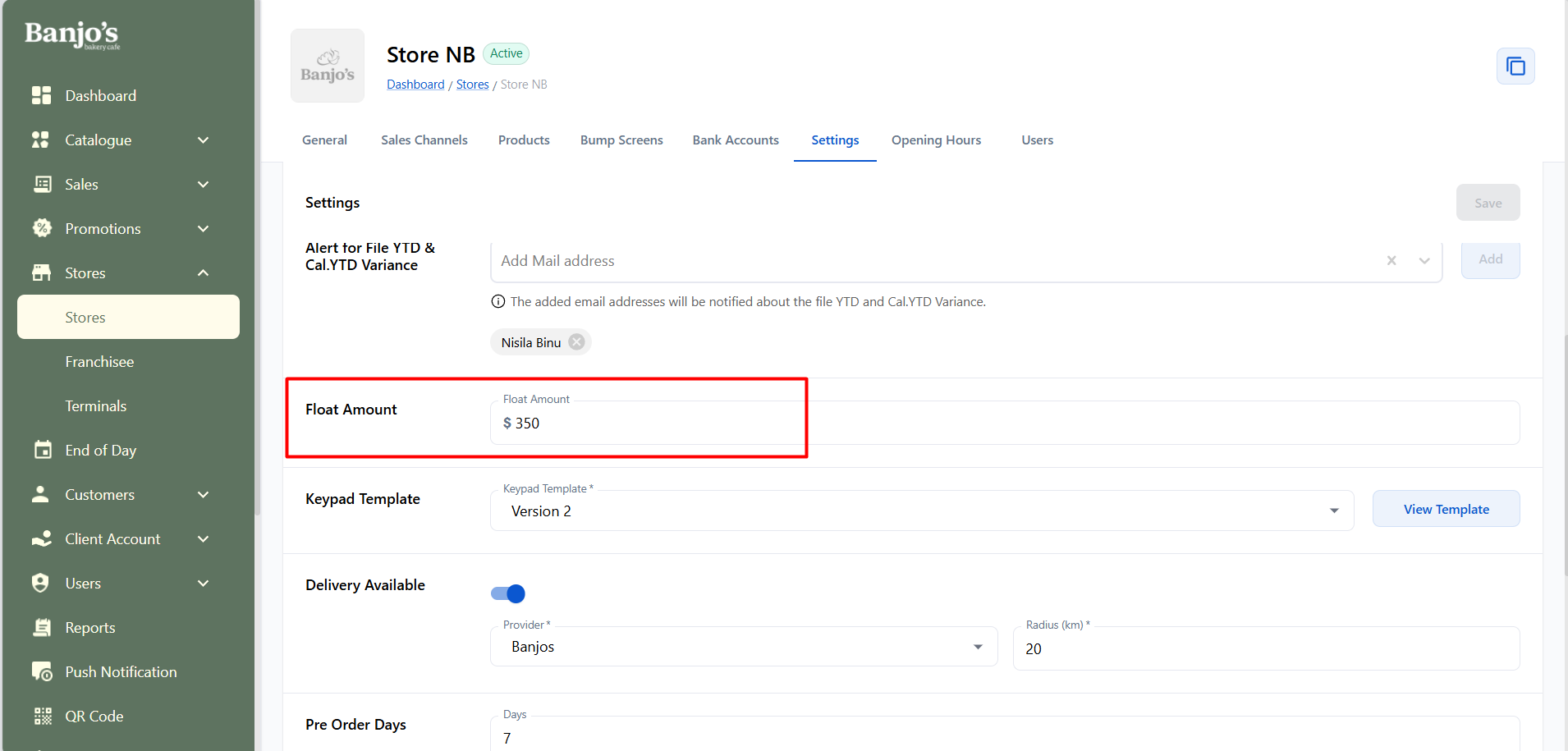
EOD Template Settings
We have two EOD templates available. The admin user can choose which template should be used for their store’s EOD.
EOD templates can be configured at both the Super Admin level and the Store Admin level.
- Super Admin: Navigate to the store’s detail page → Settings tab → “EOD Template”
- Store Admin: Go to Settings → “EOD Template”
EOD Templates
Two types of templates are available - Template 1 & Template 2
-
Template 1 – Standard EOD Process. Every new store will have “Template 1” set as the default EOD template.
-
Template 2 – This is a simplified version of the EOD process.
EODs generated for a store will follow the template assigned in the store’s settings (either Template 1 or Template 2).
EOD Edits: Any EOD edit will retain the template used at the time of creation, even if the store's EOD template is later changed.
List of all EOD submits with its status.
We get to see list of all submitted EOD. We can search the list by Store and Terminal Name. We can also filter the list by Status, Store, Terminal and Date.
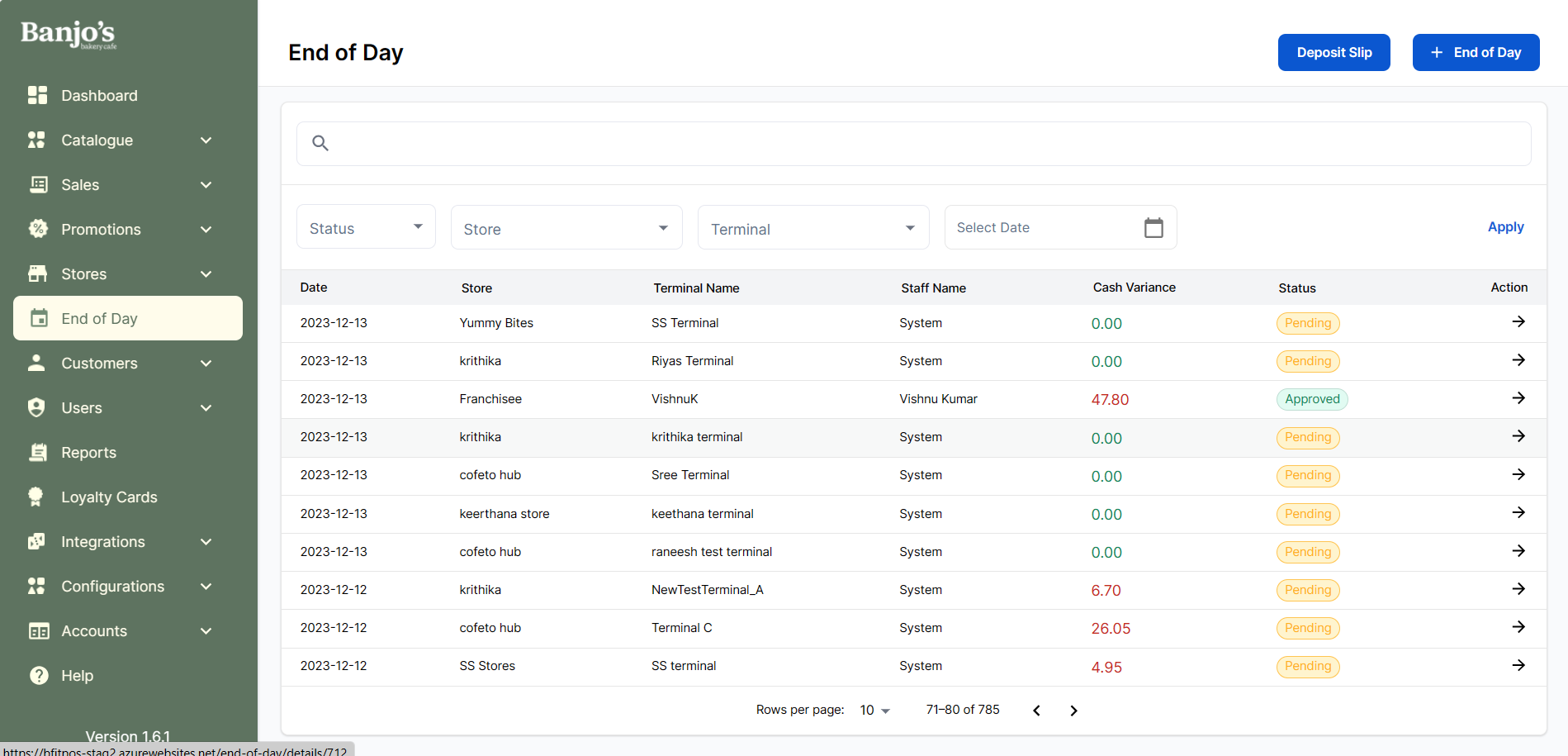
| Sale Date | The Date for which the EOD is submitted. |
| Updated Date | Date & Time for which the EOD is updated. |
| Store | Store for which EOD is submitted. |
| Terminal Name | Terminal of the store for which EOD is submitted. |
| Staff Name | Staff who submitted the EOD. |
| Cash Variance | Difference between "cash in hand" and "System cash" |
| Status | Status of submitted EOD. It can be approved(If manager approved EOD submit) or pending(EOD submitted, but not approved) |
Submit a new EOD
Select the store, terminal, and date for which you want to submit the End of Day (EOD) report. If an EOD report has already been submitted, you can edit it by clicking on view details. Otherwise, you can proceed to submit a new EOD.
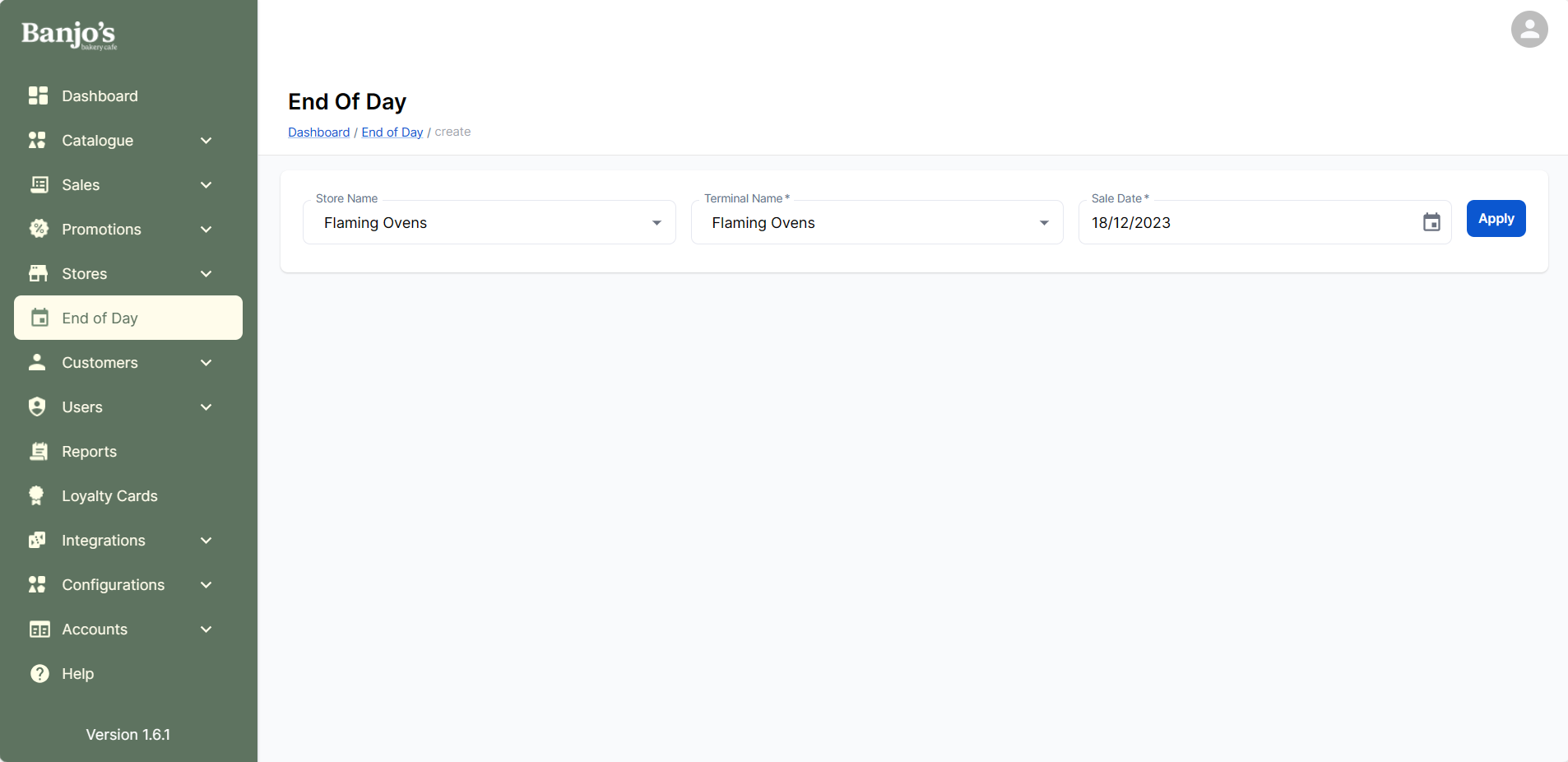
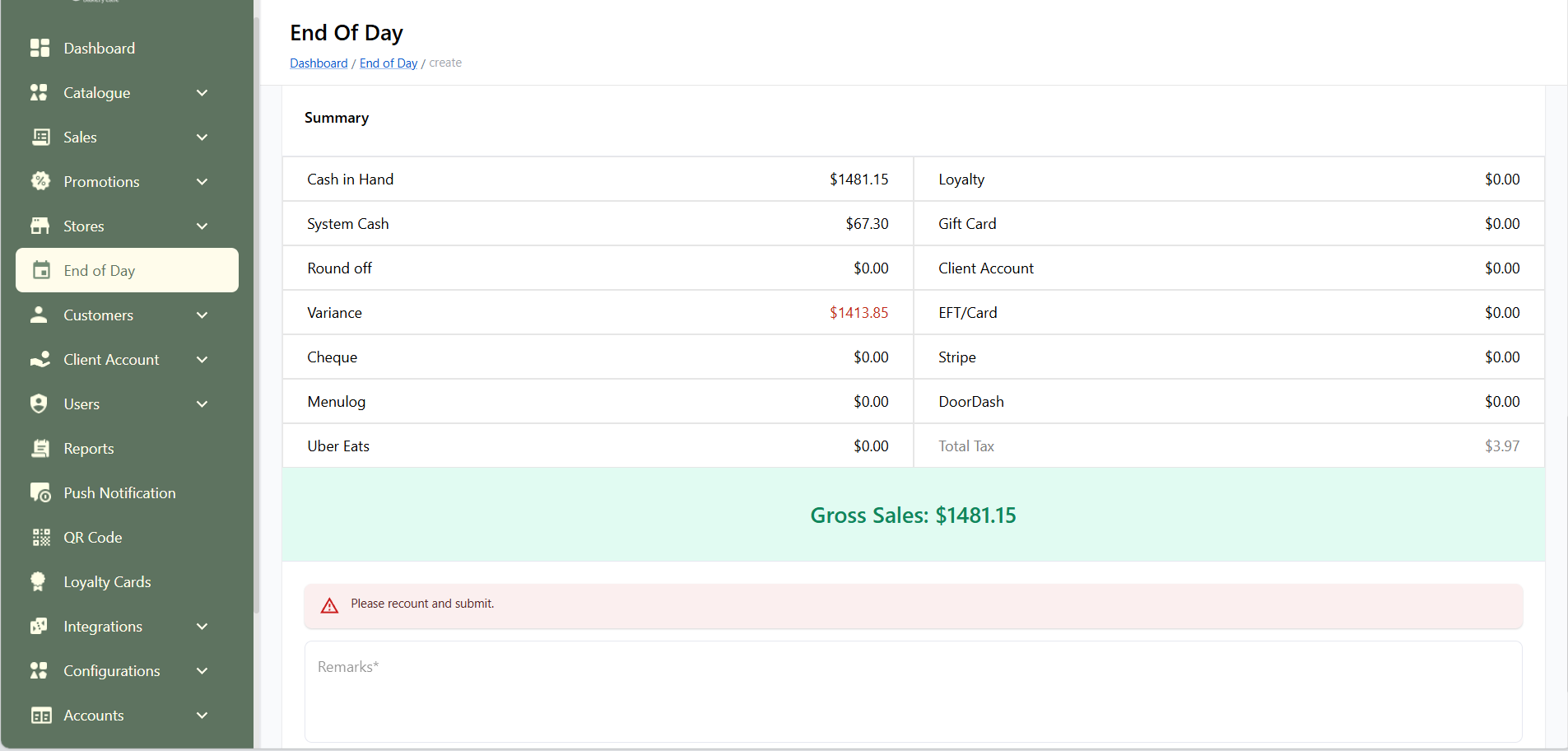
EOD submit for a normal staff will be blind balancing. But for manager, a summary with details like cash in hand, system cash, cash variance, EFT amount, Client account, Gift card etc will be available.
When a manager submits EOD, it will be auto-approved. But when a staff submits it, it will be in "pending status" and manager needs to approve it.
EOD Submit Using Template 1
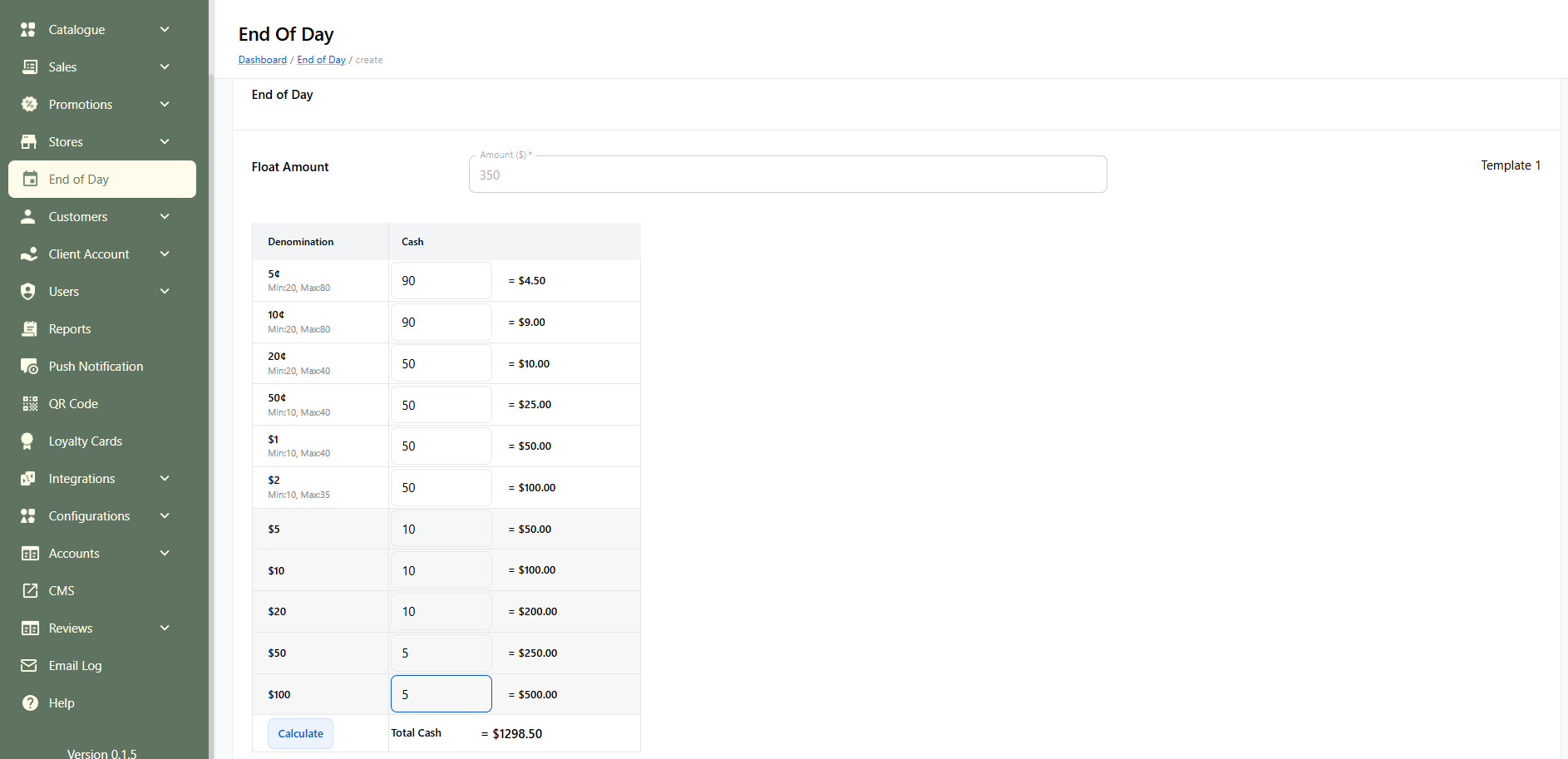
Float Requirements
-
Min Count: Users must meet the system-defined minimum for each denomination.
-
Max Count (Float): This refers to the maximum number of units permitted in the float. Any units exceeding this limit will be allocated to the bank.
-
The system determines the allocation of each denomination between float and bank, ensuring the total allocated to float matches the required float amount.
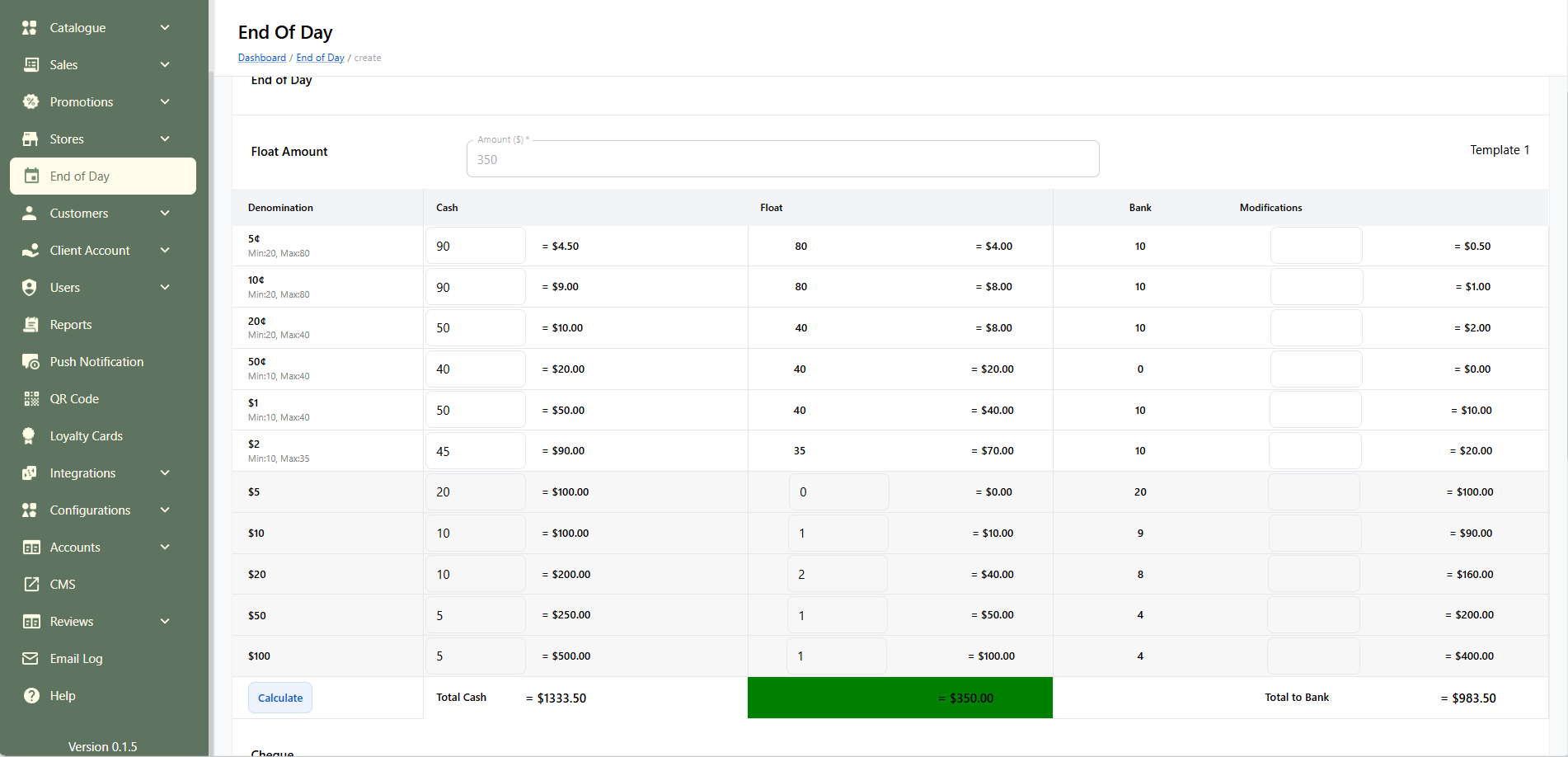
Denomination Entry
- For amounts ranging from 5¢ to $2, a minimum count is required and a maximum count is allowed (for float); the system automatically allocates between the float and the bank.
- Denominations with fixed behavior are allocated as follows: $5 and $10 always go directly to float, while $20, $50, and $100 are always allocated directly to the bank.
Automatic Allocation
Activated when the user clicks the Calculate button.
-
Automatically allocates denominations ranging from 5¢ to $2
-
Enforces minimum and maximum count rules for each denomination
-
Distributes any remaining units to the Bank
-
Applies fixed allocation rules for $5, $10 (to Float) and $20, $50, $100 (to Bank)
-
Ensures the total float matches the required float amount
EOD Submit Using Template 2
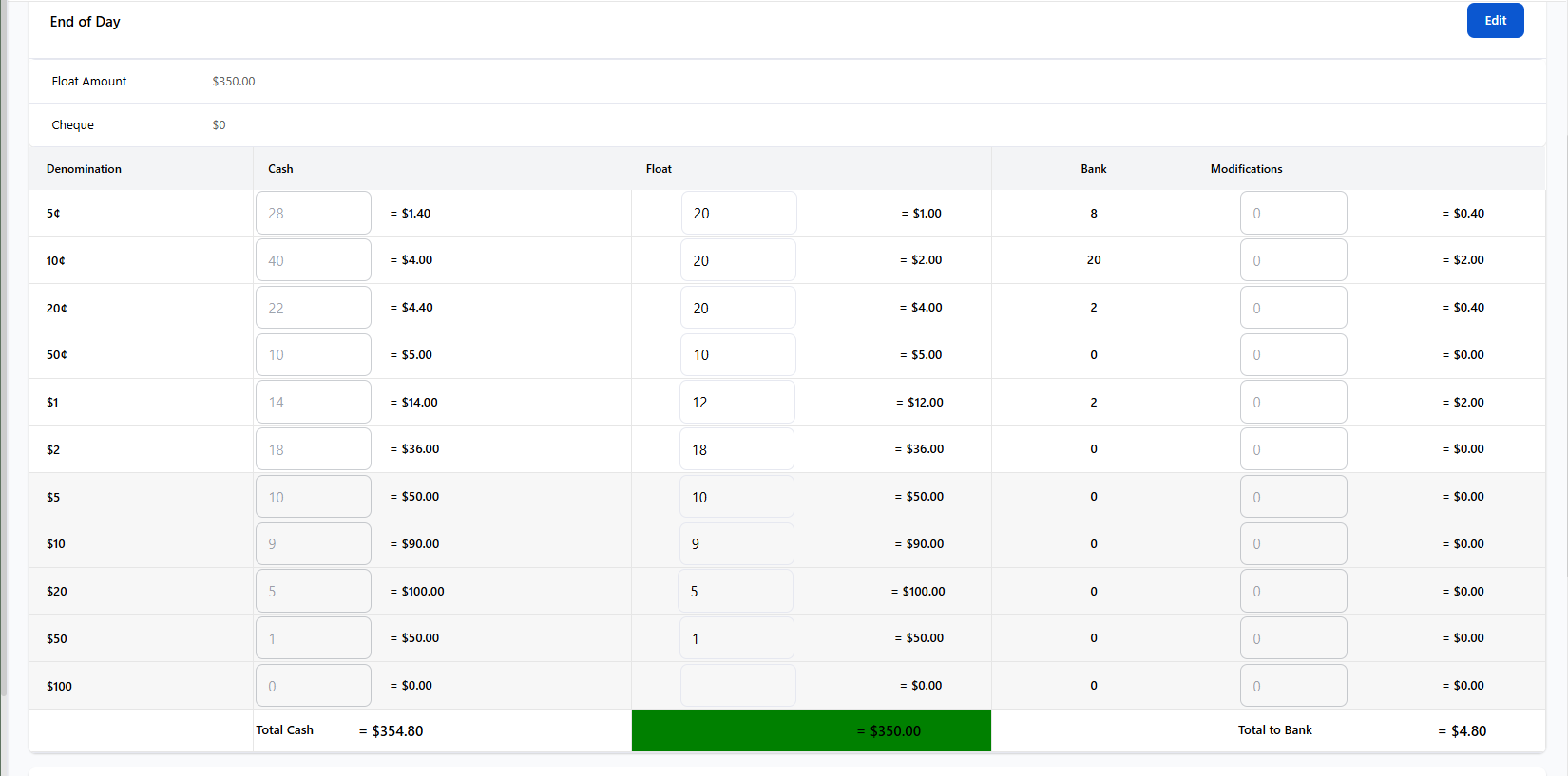
Float Requirements
-
Only the minimum float levels need to be set.
-
Maximum limits are optional and can be left empty.
Cash Handling & Bank Deposits
-
When a cash amount is entered, it is automatically added to the bank.
-
Clicking on the "Calculate" button does two things:
-
It ensures the minimum float amount is allocated to the float.
-
If there’s leftover balance that meets the minimum coin requirement, it is also moved to the bank.
-
-
If minimum requirements aren’t met, an error will be shown, prompting the user to adjust values accordingly.
-
To Submit EOD, the float amount and float total should be equal.
Modifications
The Modifications column allows manual adjustment to banked amounts. You can Increase/Decrease units to bank:
-
Increase (e.g., enter +1 to add 1 extra unit to bank)
-
Decrease (e.g., enter -1 to remove 1 unit from bank)
For both template 1 and template 2, when the variance is greater than +/- the float value set in that store's settings (eg:$30), then the user should recount and submit.
Staff can update a pending EOD submit but a manager can update pending and approved EOD submits.
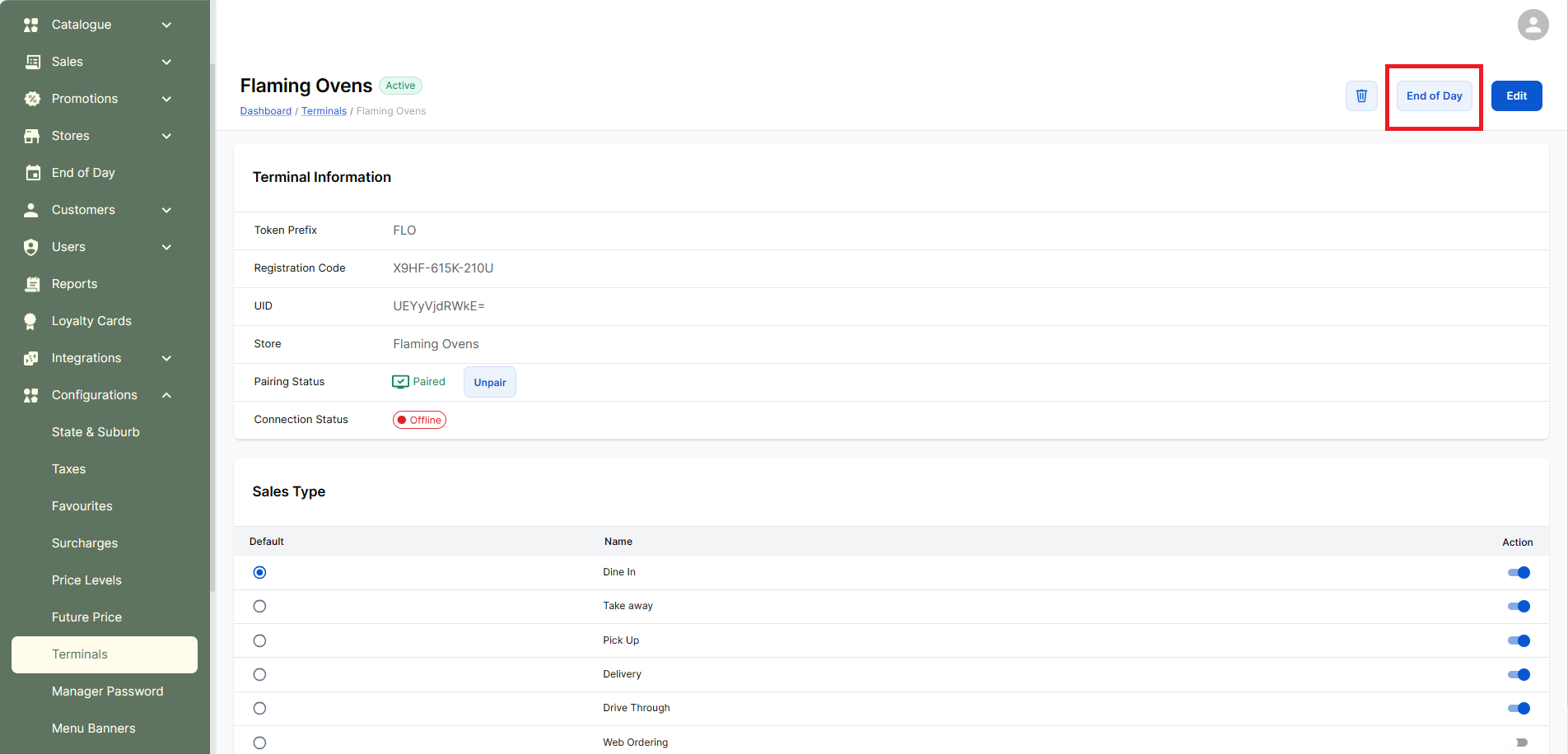
EOD from Terminal's detail page
User can also submit EOD from a terminal's detail page.
EOD for Cashless Till
POS terminals where no cash transactions are performed can be configured as Cashless Tills.
For EOD in cashless tills:
- System cash value will always be 0
- Only card and other non-cash transactions (if any) are considered
- Float amount is set to 0
EOD created for cashless till are now auto-approved.
EOD Auto-Create
If a staff member forgets or skips submitting the EOD for a terminal, the system will automatically generate the EOD at a predefined time.
In such cases:
- System cash and other transaction values (e.g., card payments) are auto-calculated
- Cash in hand is considered as zero
- The EOD entry will show “System” as the user instead of a staff name
EOD for Non-Terminals
Non-terminals are system-created terminals (not physical devices) used to account for online sales channels such as Online Ordering, Uber, and DoorDash (web sales).
For these non-terminals, the system automatically generates the EOD entries.