Promos and Notifications
Overview
The Admin Panel allows users to create and manage Promos and Notifications for display in the POS App. These can be used to communicate offers, updates, or important messages to staff members at stores.
Admin Panel Functionality
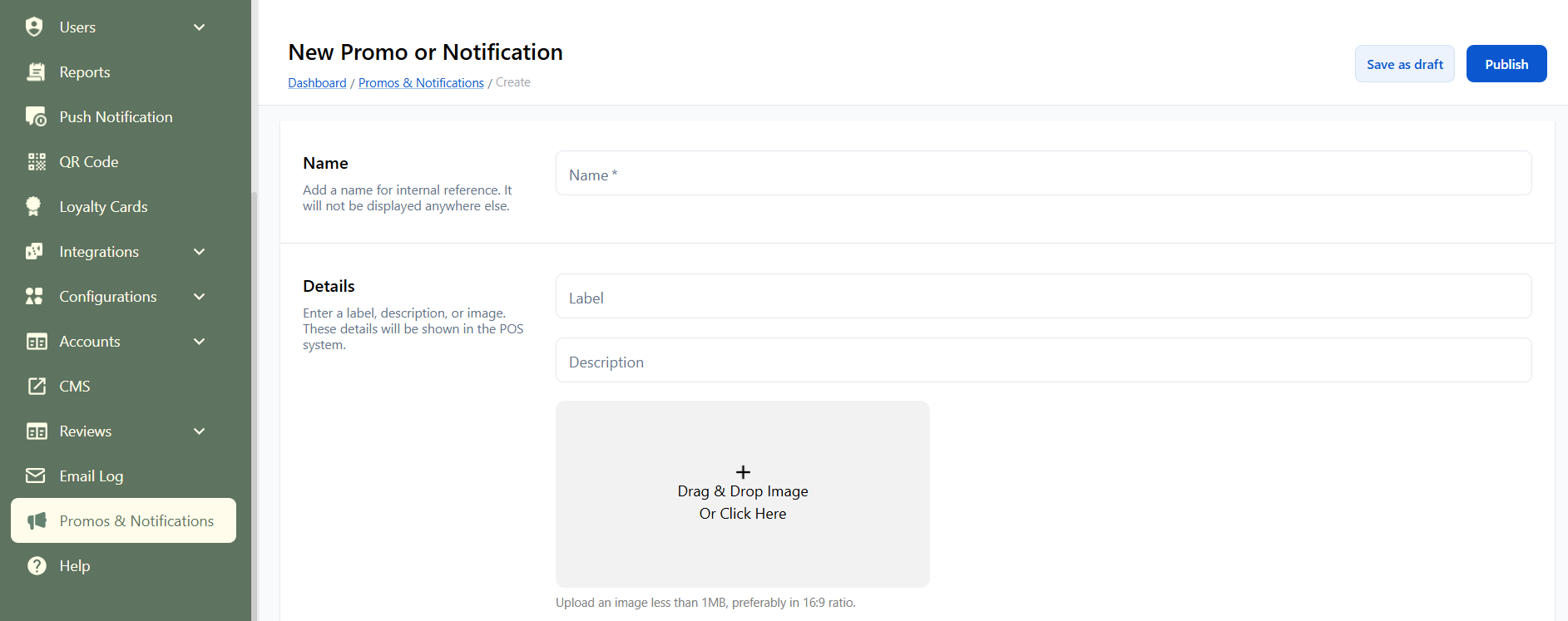
Fields
- Name: Used to identify the promotion/notification within the Admin Panel. (Not displayed in the POS App)
- Label: The title displayed in the POS App.
- Description: Text content shown to staff members.
- Image: Image to accompany the promotion or notification.
Note: At least one of the following — Label, Description, or Image — must be provided.
- Type: Whether it is a notification or promo you want to create.
- Stores: You can assign stores if this should be store-specific. Otherwise, it will be applicable to all stores.
Validity
- Start Date (Mandatory): Defines when the promo/notification should start showing in POS app. For newly created or cloned entries, the Start Date should default to the current date.
- End Date (Optional): Defines when it expires.
Note: The item will only be visible in the POS App if it is Published and within the defined date range.
States
A promo/notification follows the below state flow:
- Draft: Created but not yet visible in the POS App.
- Published:
- Becomes available in the POS App (if mapped to a store and within validity period).
- Once published, it cannot be edited — it can only be Unpublished or Deleted.
- Unpublished:
- Removed from the POS App but retained in the Admin Panel for future use or reference.
- It can be set back to Published, to again start showing in POS app (but only if it is within the set date-range).
- Ended: When the End-Date is over, it will be in Ended state.
POS App Functionality
Promos
Promos will be shown in the cart area when no sale is in progress. Once a sale begins, the promo section will auto-close. After the sale is completed and the cart becomes empty, it will reappear. Users can manually close it at any time, and during a sale they can still access it by clicking the Promos tab.
Only Published promos that are mapped to the store and fall within the valid date range will be displayed.
Notifications
A notification icon will appear, showing the count of unread notifications (if any).
Only Published and date-range satisfying notifications mapped to the store will be displayed.
When a staff member logs into the POS App for the first time each day, if there are any unread notifications, the notification pop-up will open automatically.
Staff can close the pop-up and later view notifications by tapping the notification icon.
A notification is marked as read when the staff member clicks on “Mark As Read”.
Read/unread status is tracked per staff member.