Stores
The user can create and manage stores from here.
List all stores
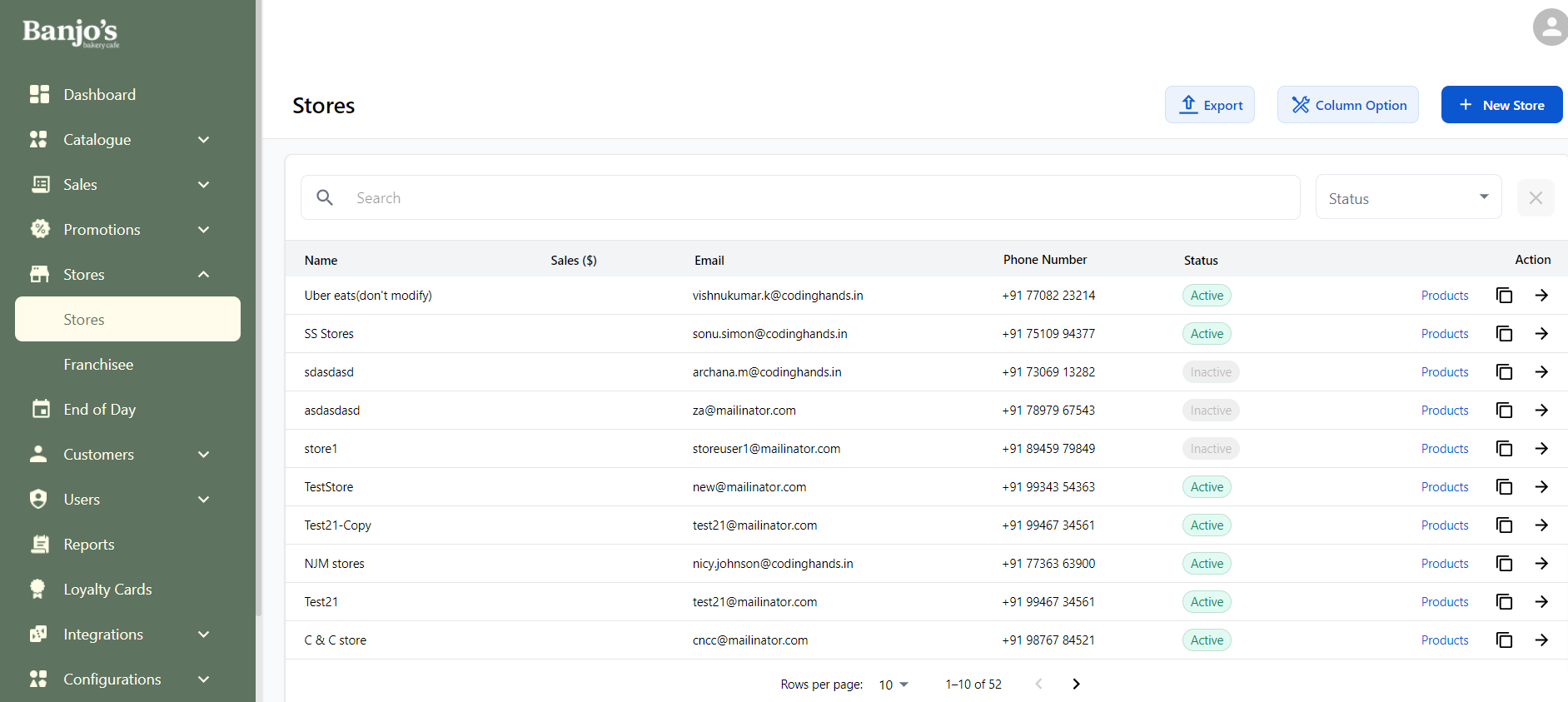
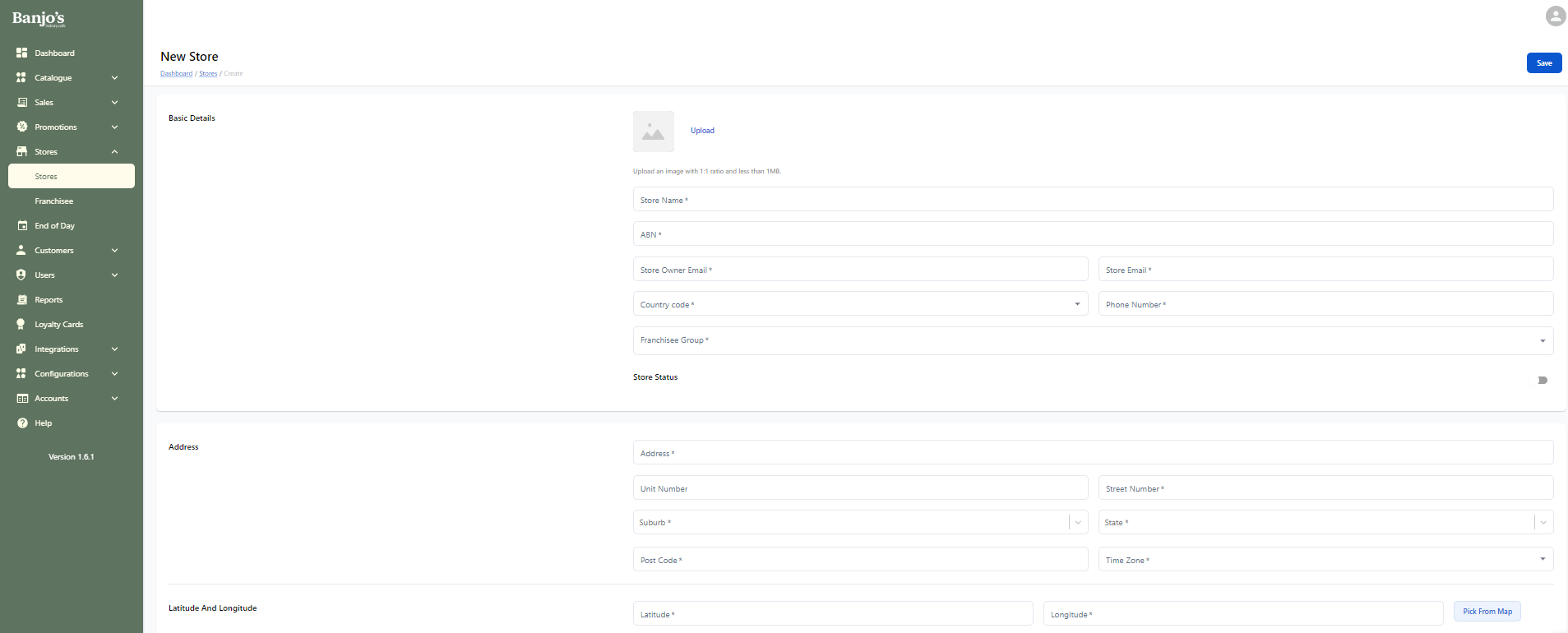
Create a new store
Click on the "+New Store" button.
Store details
General
The user can view and edit general details about the store.
Sales Channels
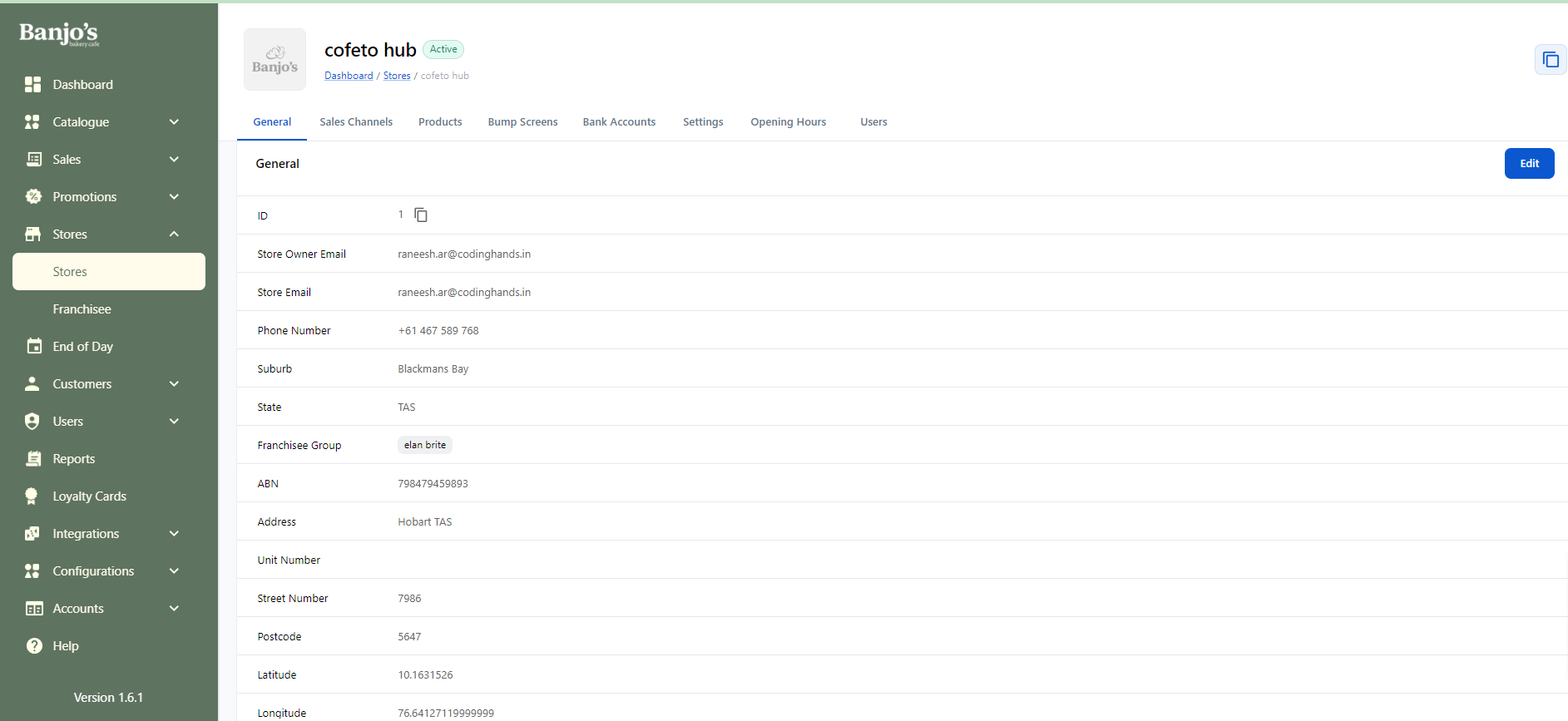
A store can have additional sales channels beyond POS, which can be managed here. Users can set price levels and OPEN/CLOSE the store for each sales channel.
To mark a store as OPEN in a sales channel, it must be in a connected status. Closing a store from this section will keep it closed indefinitely until manually reopened either here or via the integration menu.
Connecting a store to a sales channel is done from integration’s menu.
Products
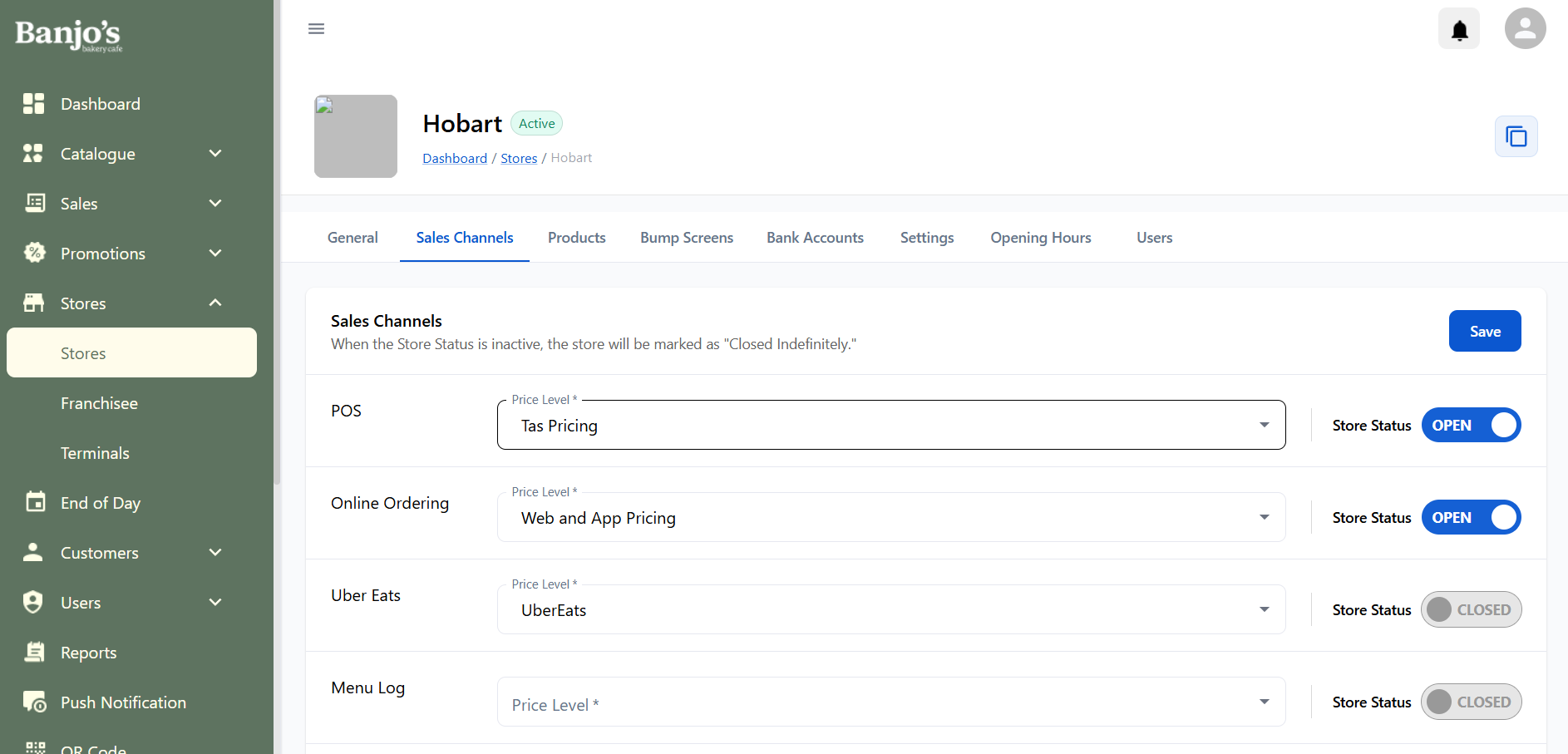
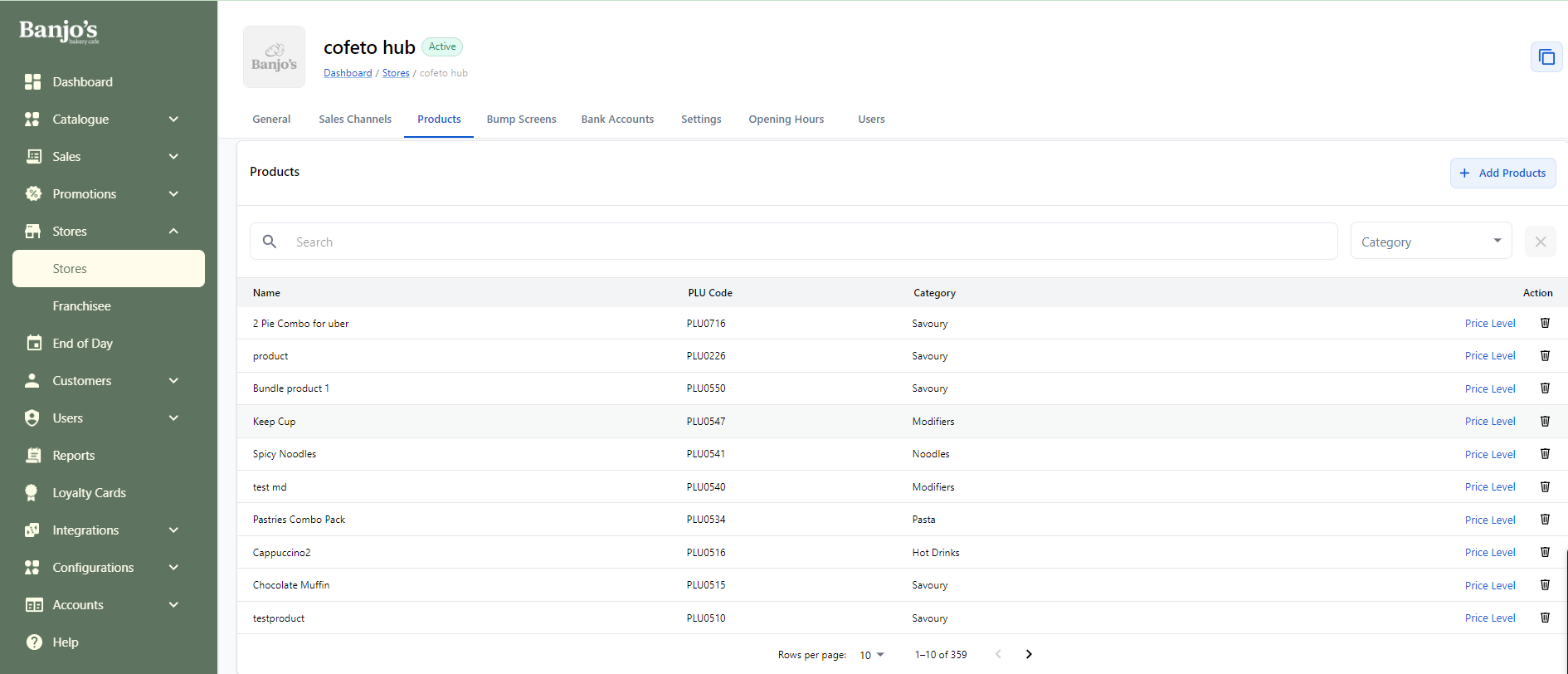
Here, the user gets a list of all products currently mapped to the store. The user can add more products and/or remove products from the store. Mapping a product to the store is one of the prerequisites for the product to be displayed in the POS Sales Window, under the store.
Bumpscreens
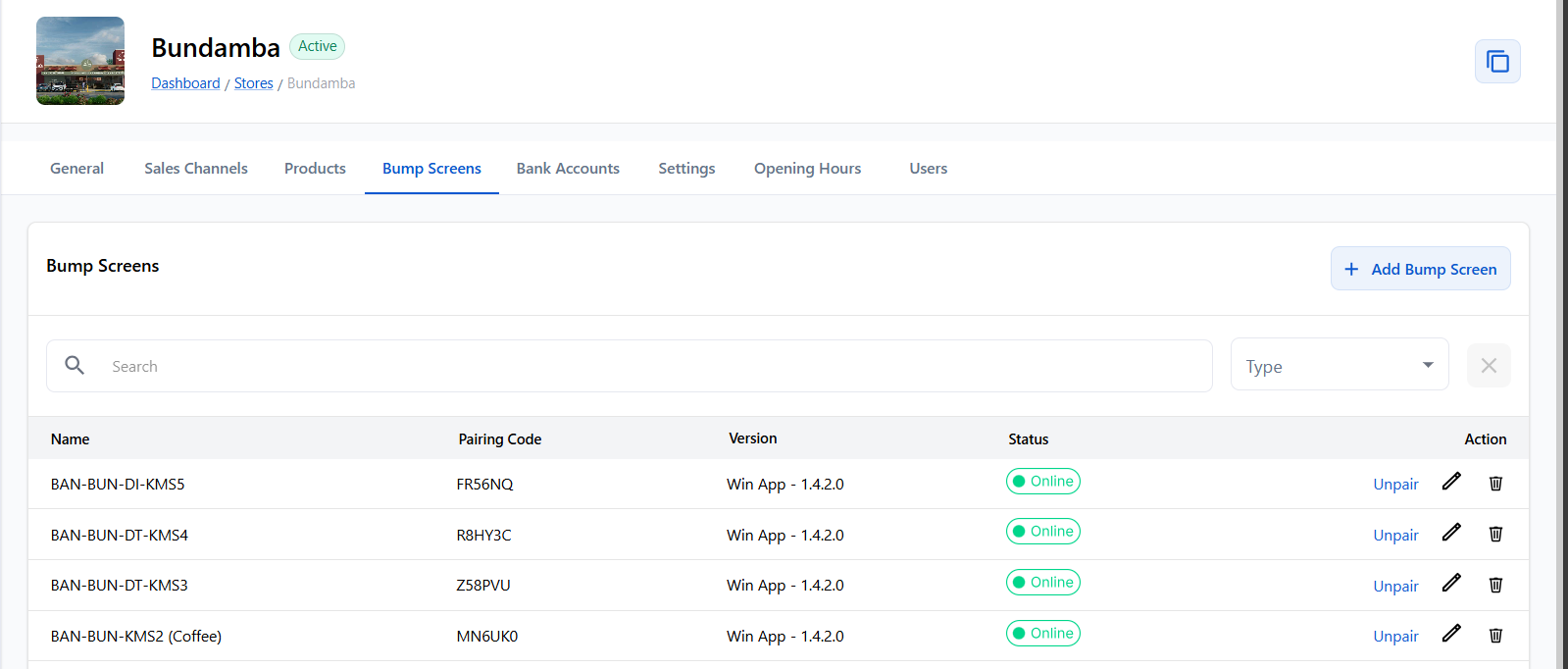
For each store, the admin can create one or more bump screens from here and configure them by adding the required sales channel, sales type, and tags. Products are linked to a bump screen using both the product's "bump screen tags" and the bump screen's "bump screen tags."
| Name * | Name for the bumpscreen. |
| Pairing Code | Auto-generated code when the bumpscreen is created. This is used to pair/register the bump screen. |
| Status | Unpaired: Not paired with any display device Offline: Currently paired with a display device, but the device is offline. Online: Currently paired and online. |
| Version | Shows whether it is Web or Windows version of KDS and its version number . |
| Action | You can Edit or Delete a Bumpscreen |
Click here to know more about Bumbscreen/KDS
Bank Accounts
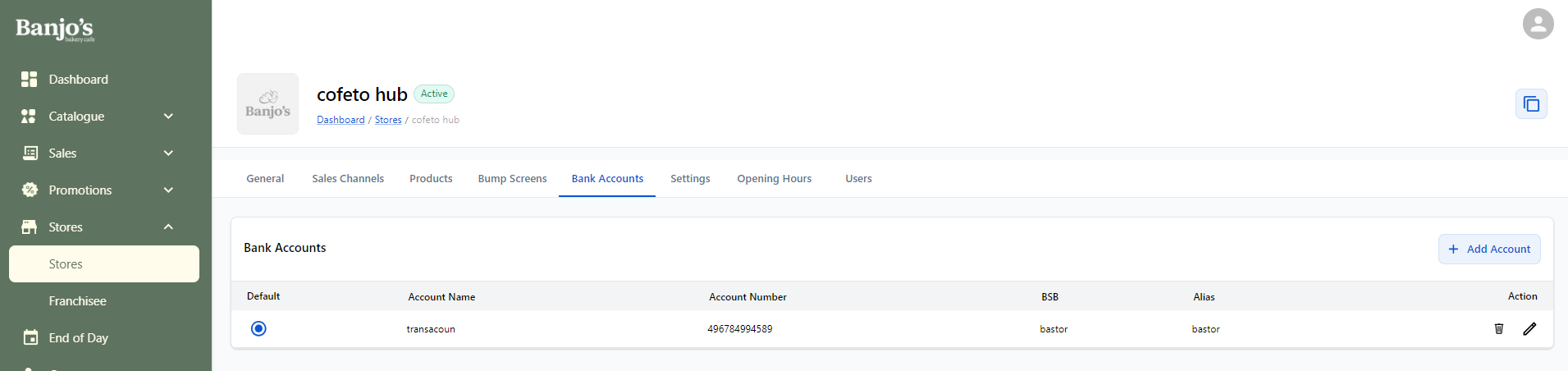
User can add and manage one or more bank accounts for the store and set one as default. These bank account details are used while generating deposit slip.
Settings
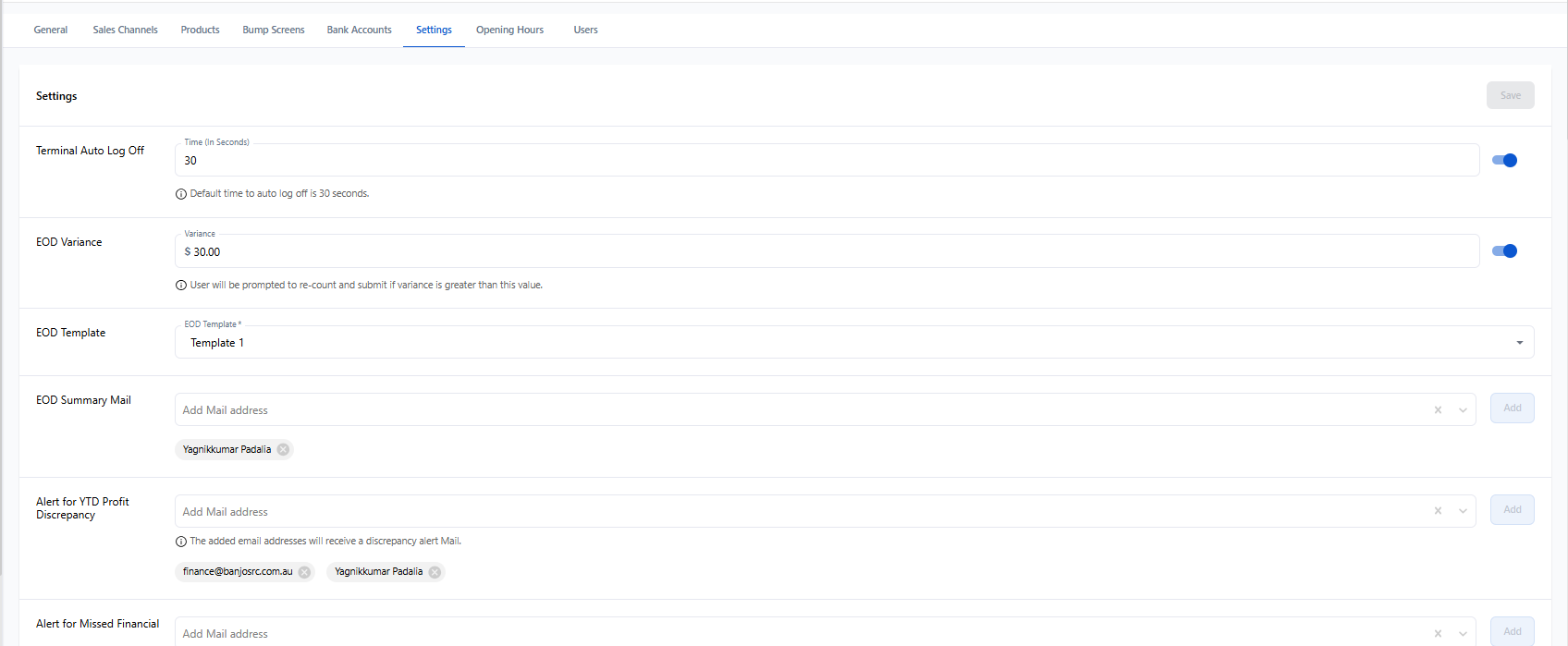
Store-level settings, such as EOD configurations, POS settings, certain email configurations, etc can be managed from here.
| Terminal Auto Log Off | The Auto Log Off time (in seconds) for all terminals linked to a store can be configured here. If not set, the default auto logoff time will be 30 seconds. |
| EOD Variance | EOD variance amount can be set for which user will be prompted to re-count and submit if variance is greater than this value |
| EOD template | The pre-defined EOD templates will be listed and any one template can be selected |
| EOD Summary Mail | We can add the mail ids to which EOD summary mail is to be sent |
| Alert for YTD Profit Discrepancy | Email ids to notify the Finance and user if YTD Profit in P&L does not match Current Year Earnings in BS. |
| Alert for Missed Financial | Email ids to notify the Finance and user when a store fails to upload the P&L or BS reports by the monthly deadline |
| Alert for File YTD & Cal.YTD Variance | Email ids to notify the Finance and user if there is a variance in YTD and Cal.YTD |
| Web Order Fee Report | Email ids to receive the month wise summary of the Order Fee report. |
| Web Order Fee Report | Email ids to receive the month wise summary of the Order Fee report. |
| Scheduled Ordering (POS) | Store-level configuration to Enable/Disable scheduled orders in POS. |
| POS Upsell Prompt | Configuration on whether or not to show upselling prompt in POS app for this store. |
| VIP Card Prompt | We have functionality to prompt staff to scan the VIP card of the customer if it is not already scanned. The confifguratio decides whether this prompt should be shown. |
| Float Amount | The float amount value in the cash drawer for a particular store can be set |
| Keypad template | The keypad that should be used for all POS terminals of the store. |
| Delivery Availabilty (Online Ordering) | Delivery Availability can be toggled ON and OFF. When it is ON, the respective store is available for delivery in the online app and web platforms |
| Provider | If the delivery available is toggled ON, we have to set the delivery provider either Banjos itself as the delivery provider or a third party delivery provider called DoorDash |
| Radius | If the delivery available is toggled ON, we have to set the radius (in km) to which delivery can be provided. When a delivery address is selected in the online web or app platform, the stores within delivery radius will be listed |
| Preorder Days (Online Ordering) | We can set the number of days for which the store is available for future orders in the online web and app platforms here. |
| Cart Quantity Threshold | Quantity of products cart can hold at a time. If cart quantity exceeds the limit, an alert displays to notify that time to prepare the order will take more time. |
| Drive Through Online Order Collection | If enabled, drive through will be enabled for online order |
| Enable Local Communication | If enabled, communication between tills and from tills to KDS will take place locally. |
Opening hours
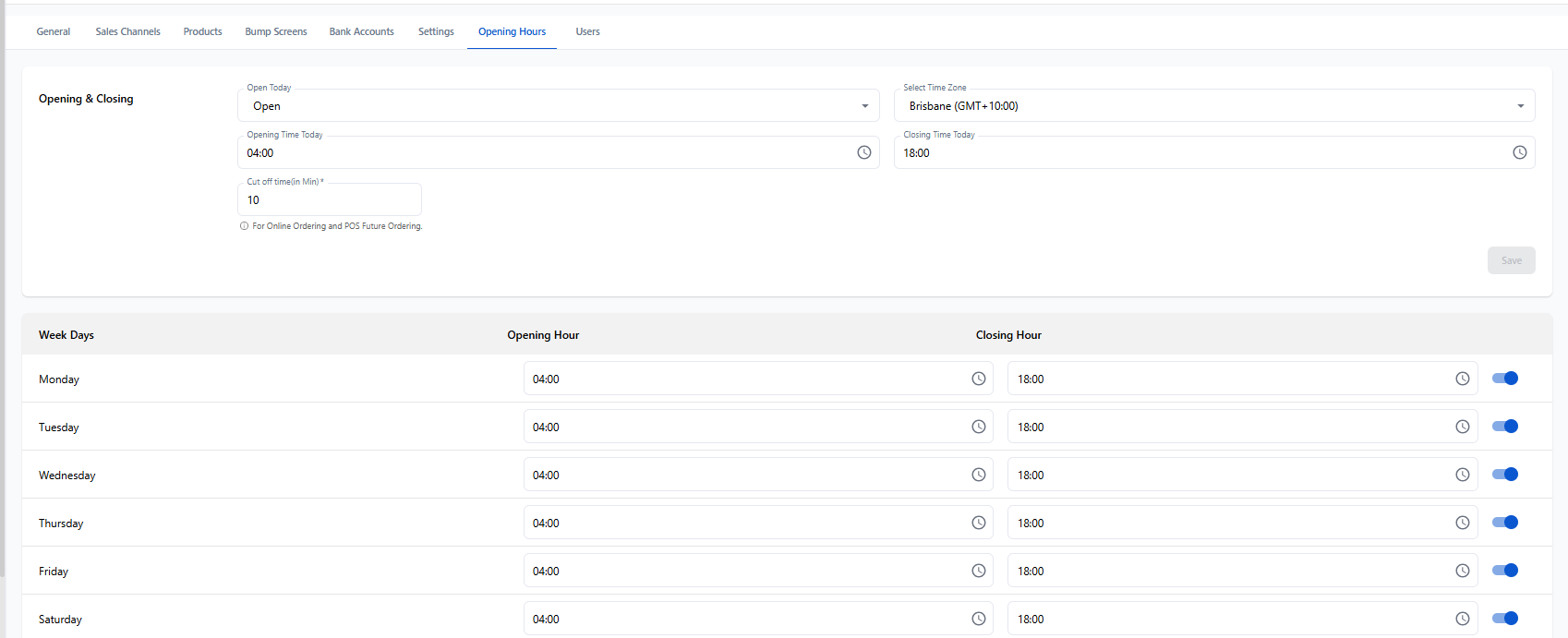
Store opening and closing times, timezone, holidays, and public holidays can be configured here. The current day's open/close status, along with the opening and closing times for all weekdays, can also be set. These store timings are for display purposes on store pages only. Sales channel-specific timings are managed through Integrations.
Public holidays and holidays set here apply to all sales channels.
Cut Off Time (in Min) This value is taken as buffer time to apply to Online Orders and scheduled POS orders
Users
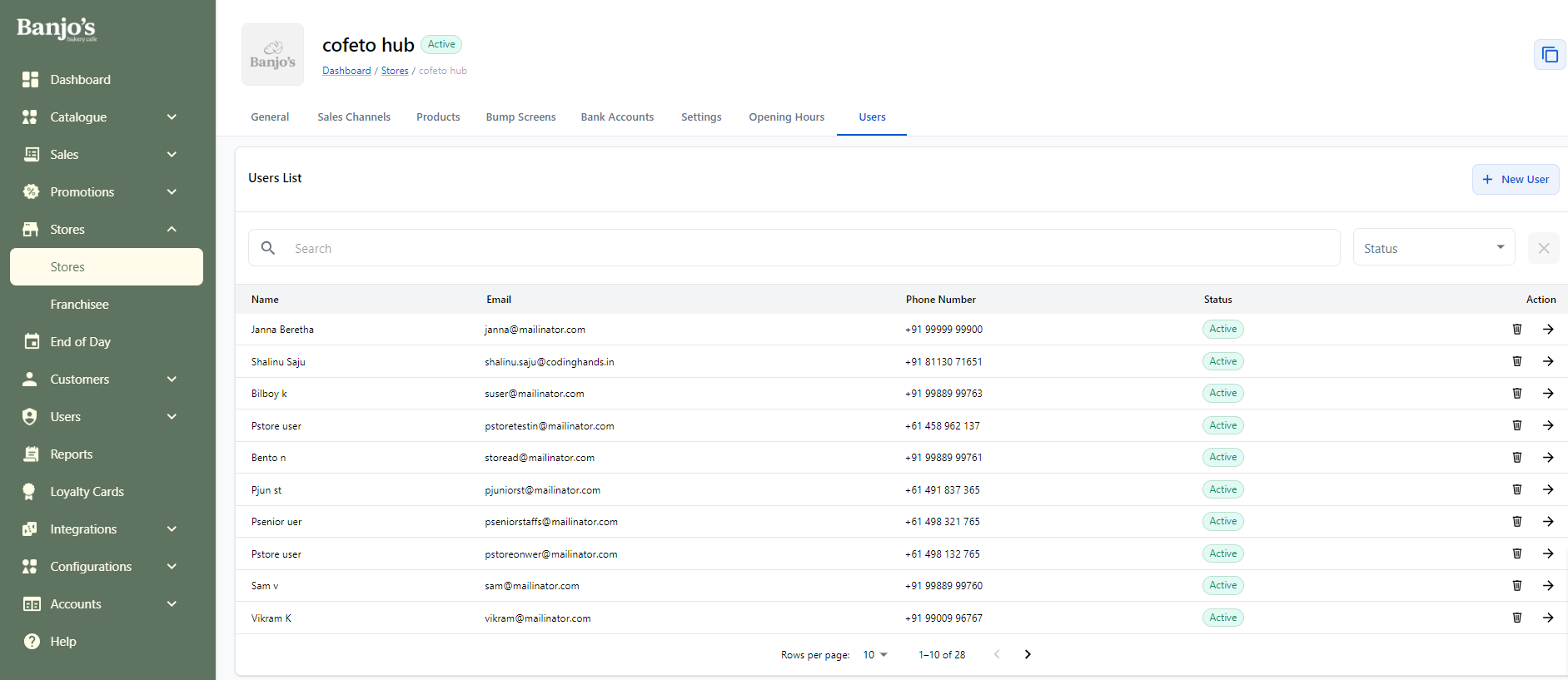
Users who are mapped to the respective store will be listed. User's details along with active/inactive status will be listed here. We can remove a user from the store from here. New users can also be added to the store by sending invitation request to the user's mail id.
Test Stores
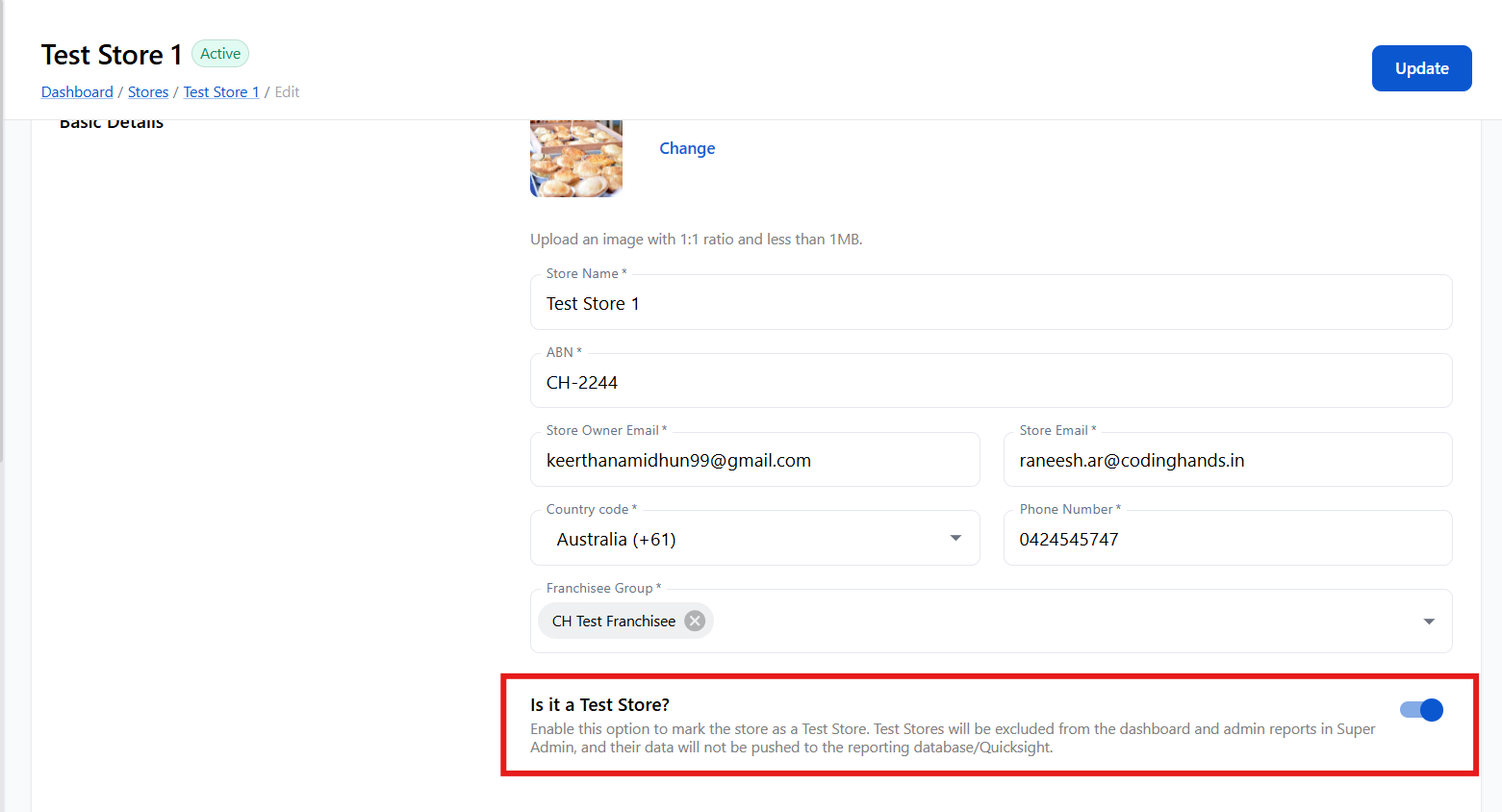
We have the provision to create test store. Test Stores will be excluded from the dashboard and admin reports in Super Admin, and their data will not be pushed to the reporting database.
To set a store as test-store, enable the switch.
Prerequisites
In order for a product to be available in POS Sales Window of a store “ABC”:
- “POS” sales channel for the store "ABC" should be enabled and mapped to a price level (say “In Store Pricing”).
- Product should be mapped to the store “ABC”.
- Product should be mapped to the price level “In Store Pricing”.
- For a product with optional group(s), all the products in its optional groups should also be mapped to the store("ABC") and the price level("In Store Pricing").